Studio Interface
Tour of the Draft & Goal Studio interface: global navigation, workflow list, builder canvas, and App runner.
Overview
The Draft & Goal Studio is where you build, test, and manage your workflows. The interface is made up of global navigation (sidebar and top bar), Builder spaces for designing workflows, and an App space for running them.
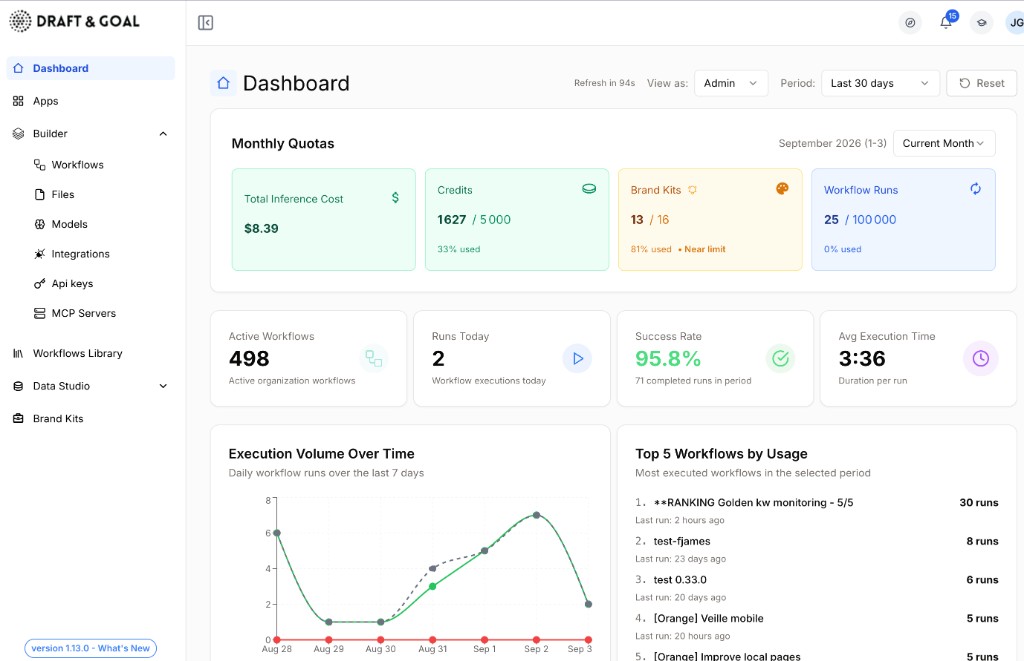
Global navigation
Left sidebar
The sidebar gives access to the main Studio sections:
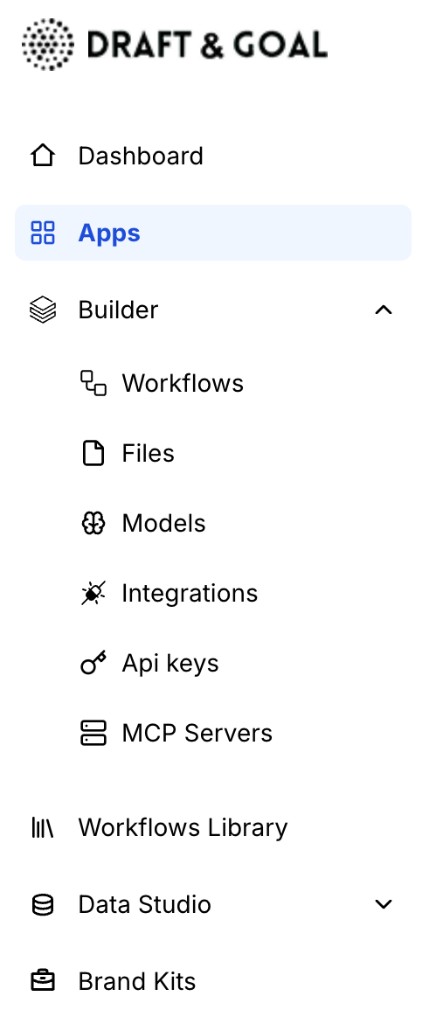
| Section | Purpose |
|---|---|
| Dashboard | Overview of your activity |
| Apps | List of published applications built from your workflows |
| Builder | Creation space: Workflows, Files, Models, Integrations, Api keys, MCP Servers |
| Workflows Library | Templates and shared workflows |
| Data Hub | Data and source management |
| Brand Kits | Reusable brand profiles for your workflows |
The Builder section is collapsible — click the chevron to show or hide sub-menus.
Shared integrations (org level)
Under Builder → Integrations, Admins and Builders manage organization credentials (OAuth, API keys for services). Set them up once for the whole team — members use them in nodes without seeing secrets. Runners manage personal integrations only.
Who can add, use, or delete org integrations depends on the Studio role. See Roles & permissions and Organization & quotas.
Top-right bar
Four shortcuts are always available, from left to right:

| Icon | Name | Purpose |
|---|---|---|
| Compass | Guided Tour | Launches a guided tour of the interface |
| Bell | Notifications | Shows alerts and updates (badge with unread count) |
| Mortarboard | Documentation | Opens Draft & Goal documentation |
| Initials | User profile | Account settings, team, and sign out |
Builder — Workflow list
From Builder → Workflows, the page is split into two areas: a workflow explorer on the left (a resizable sidebar) and a workflow table on the right.
Workflow explorer
Think of it like File Explorer on Windows: a tree on the left to browse locations, and the contents of the selected folder on the right. Here, the tree mixes smart views, folders, and an Uncategorized bucket — selecting any row updates the table.
Smart views (fixed rows at the top):
| View | What it shows |
|---|---|
| All workflows | Every workflow you can access |
| My recently viewed | Workflows you opened in the last 30 days |
| My favorites | Workflows you starred |
| My workflows | Workflows you own |
| Dormant | Workflows with no runs in the last 30 days (scheduled production workflows are excluded) |
Below the smart views, folders form a tree you can expand or collapse. Each row shows a workflow count. Use New folder to create one at the top level, or open a folder’s menu to add a subfolder, rename, change visibility & members, or delete (only when empty).
Visibility on a folder (not on individual workflows in the explorer):
| Level | Who sees the folder |
|---|---|
| Private | Only you and organization admins |
| Group | You plus the members you choose |
| Organization | Everyone in your organization |
Icons beside a folder name indicate visibility: a lock for private folders, a group badge for shared group folders. Someone else’s private folder appears with an amber lock — you can see it exists but cannot open it. Hover the lock to see who made it private or re-shared it.
Uncategorized is pinned at the bottom of the explorer. It lists workflows that are not filed in any folder — workflows you remove from a folder land here.
Drag the sidebar edge to resize it (Resize sidebar), or collapse it to a narrow strip of icons. On a narrow screen, the explorer opens in a drawer.
Sharing a folder does not share the workflows inside it. Each workflow still has its own access rules. The folder only controls where workflows are filed and who can see the folder structure.
Workflow table
The main area shows workflows for the view or folder selected in the explorer.
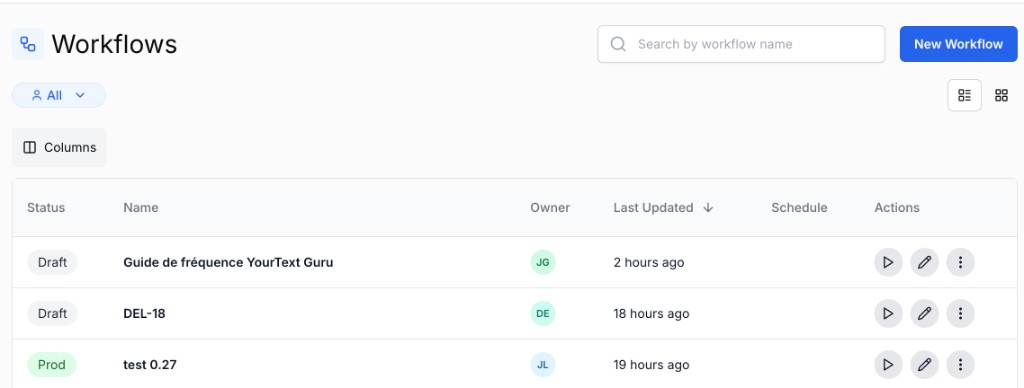
This capture shows the workflow table only. The workflow explorer (folders and smart views) sits in the sidebar to the left — it is not visible in this screenshot.
- Header: breadcrumb trail, title of the current view or folder, workflow count, and New Workflow
- Search: filters by name within the active view (placeholder adapts to the context, e.g. a folder name)
- Filter chips: Status (Prod / Draft), Owner, Schedule — combine with search and the explorer selection
- Table columns: status, name, owner, last updated, optional schedule badge, favorite star, and actions
Click a row or the pencil icon to open the canvas. Row actions include Run, Edit, Duplicate, History, Use as template, and Delete (depending on your role).
Select multiple workflows to move to folder or delete in bulk from the action bar.
Star a workflow to add it to My favorites in the explorer. Use Move to folder to file workflows; choose Uncategorized to remove a workflow from its current folder.
Builder — Workflow canvas
Once a workflow is open, the canvas is your main workspace. The Builder / App toggle at the top switches between editing and running.
The canvas is divided into four areas:
1. Canvas top bar

- Breadcrumb: back to the list and workflow name
- Builder / App: switch between editing and the runner
- Version: draft or published version
- Build / Run: test the workflow on the canvas (Build & Run mode)
2. Left sidebar — Node library
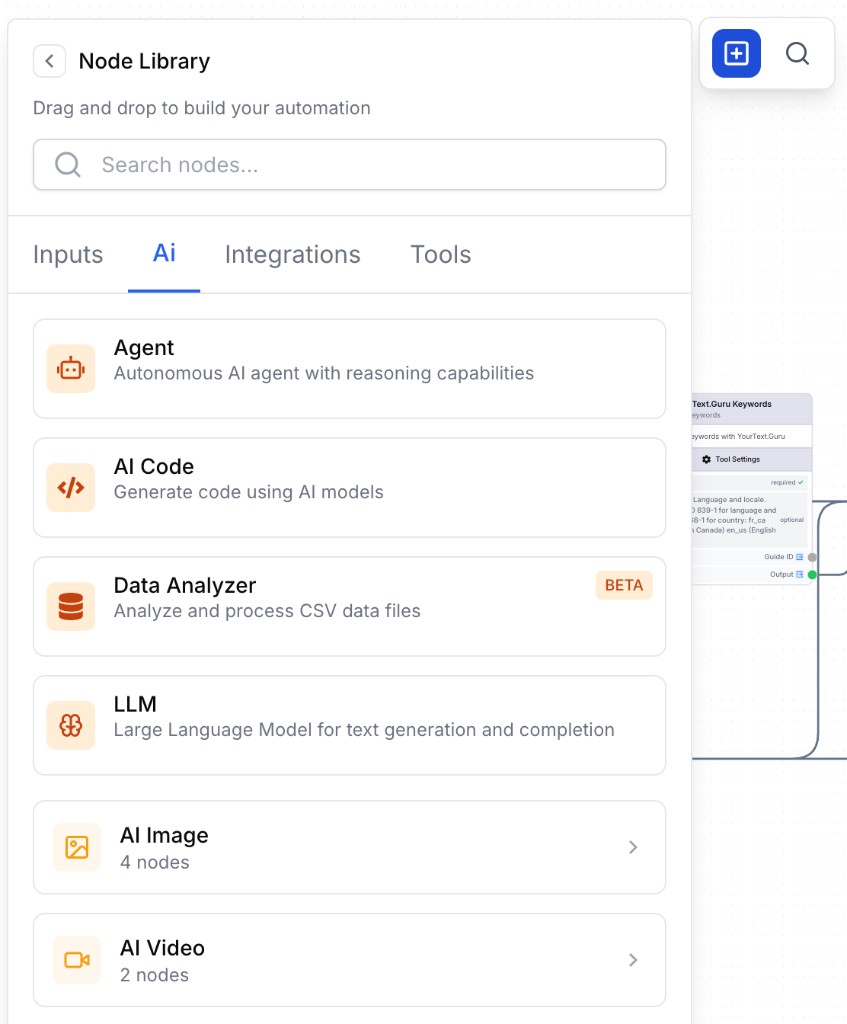
Contains all available nodes organized by category (AI, Integrations, Tools, Input/Output…). Use the search bar to quickly find any node.
3. Canvas — Workspace
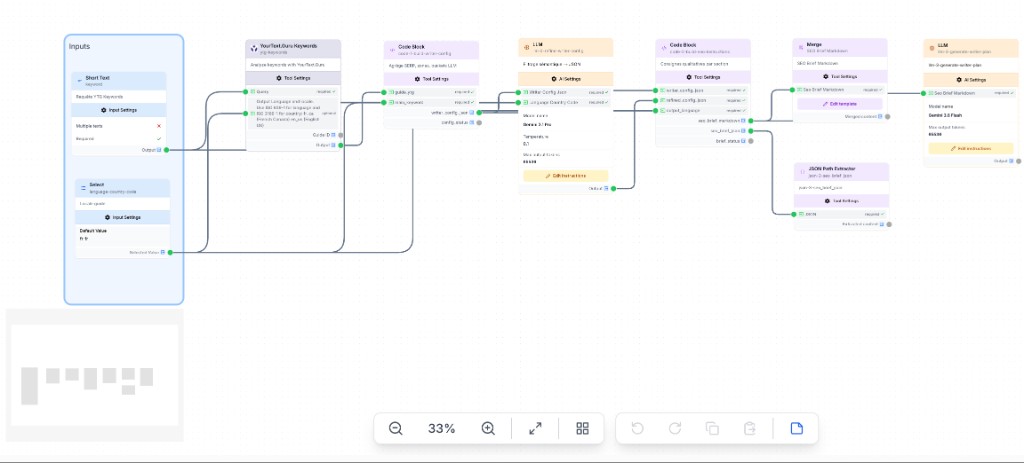
- Drag and drop nodes from the library
- Connect nodes by drawing lines between outputs and inputs
- Arrange your workflow visually
| Action | How to do it |
|---|---|
| Pan | Click and drag on empty space |
| Zoom | Scroll wheel or pinch gesture |
| Select multiple | Hold Shift and click nodes |
| Delete | Select a node and press Delete/Backspace |
| Duplicate | Select and press Cmd/Ctrl + D |
4. Right panel — Configuration
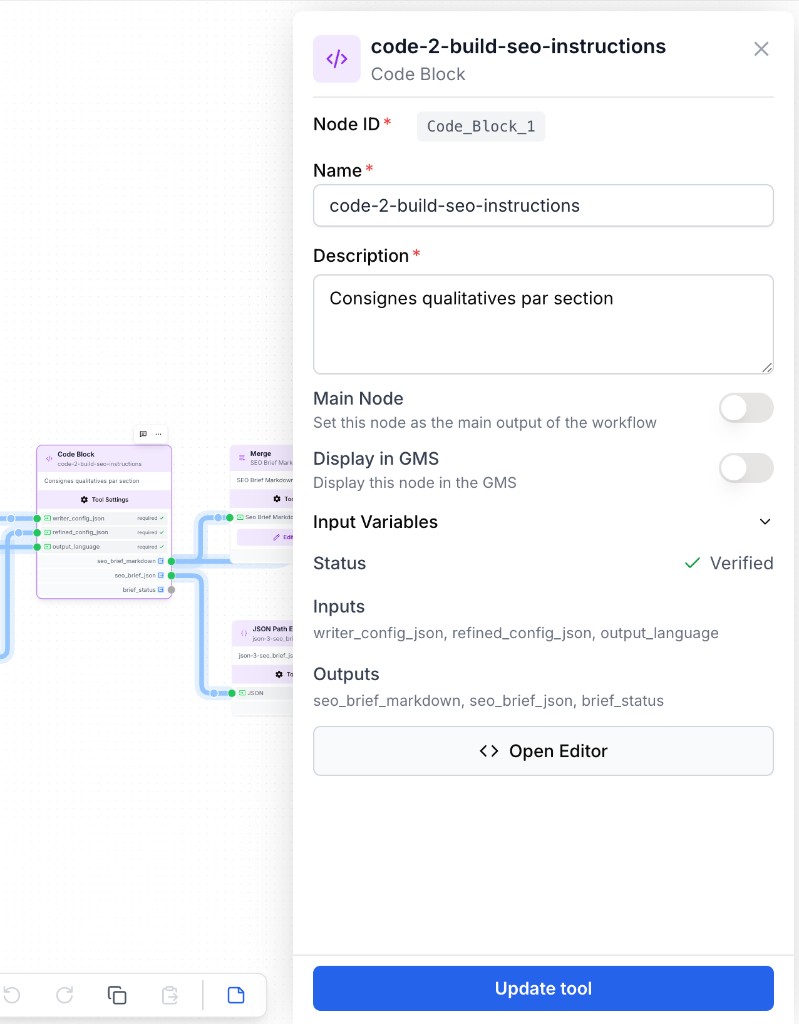
When you select a node, the right panel shows its settings, inputs, and output preview.
You can only connect compatible types. For example, you can’t connect an image output to a text input.
App — Run a workflow
Switch to App (from the canvas or the list) to open the end-user runner. The Run tab lets you launch a single run, a batch, or a schedule.
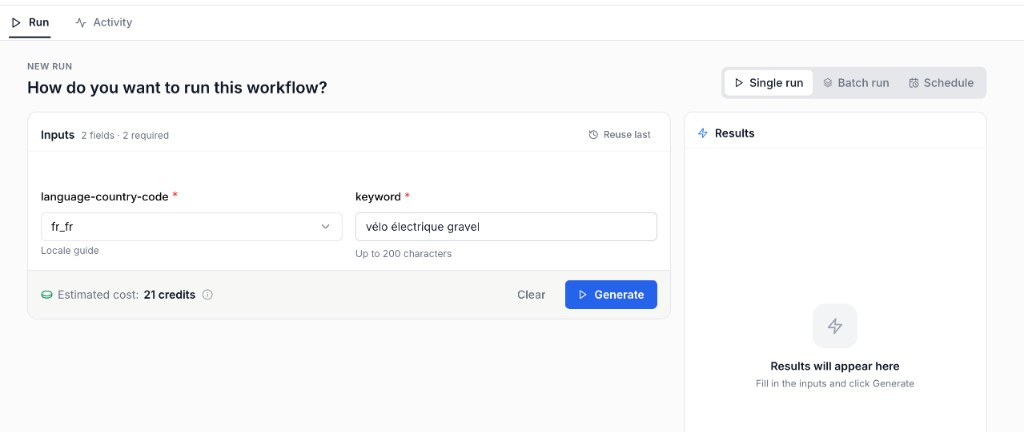
- Fill in the Inputs fields (required fields marked with an asterisk)
- Check the Estimated cost in credits
- Click Generate to start the run
- Results appear in the Results panel on the right
The Reuse last link pre-fills inputs with values from the last run.
App runner — Run history
The Run history view centralizes run history. The Runs sub-tab lists each run with its status, duration, owner, and version used.
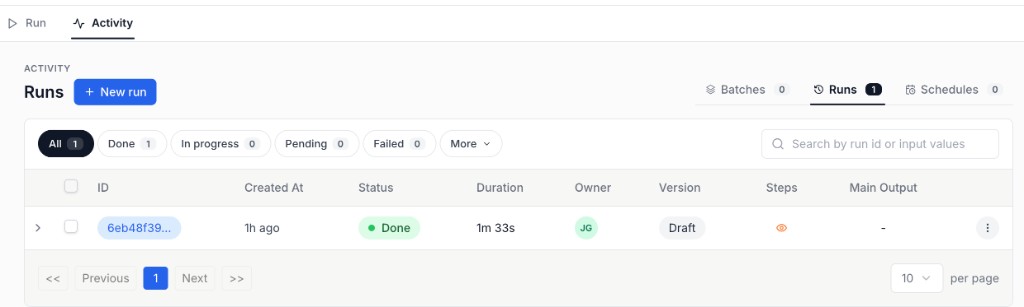
- Filter by status: All, Done, In progress, Pending, Failed
- Search by run ID or input values
- View run Steps via the eye icon
- The Batches and Schedules tabs group batch and scheduled runs
For more on running workflows and monitoring activity, see App runner and Run history.