Build & Run mode
Test workflows on the canvas with Build/Run: fill inputs, run all or up to a node, follow live status and results, and debug without leaving the builder.
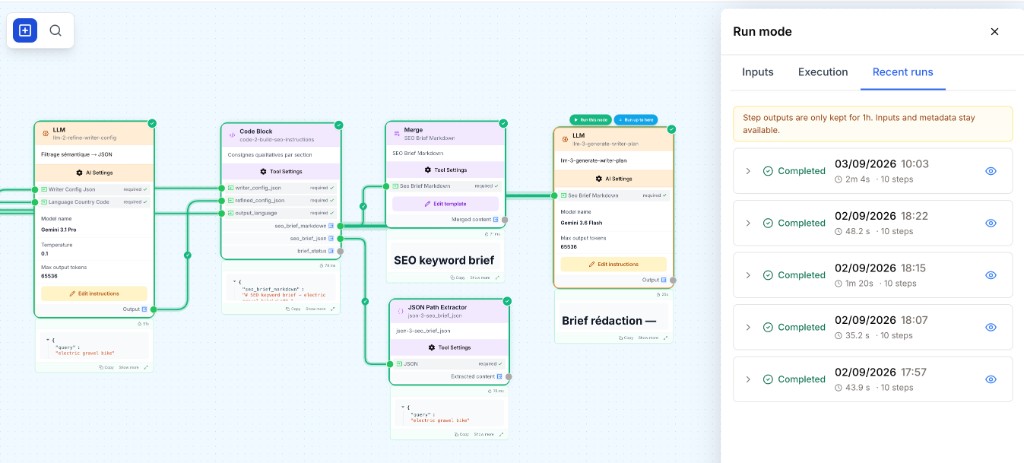
What are Build Mode and Run Mode?
The workflow canvas has two modes:
| Mode | Purpose |
|---|---|
| Build (default) | Edit the workflow: add nodes, draw connections, open settings, use the Workflow Generator. |
| Run | Execute the draft on the canvas: fill inputs, watch live status on each node, stop or re-run without opening App runner. |
Use Run mode when you want to:
- Test step-by-step while you build (or right after generation)
- See which node fails before you publish
- Compare runs with Use cache and the Recent runs tab
Use App runner (App runner) when you want an end-user style run, schedules, or the full workflow Run history.
Enter and exit Run mode
- Open a workflow on the canvas.
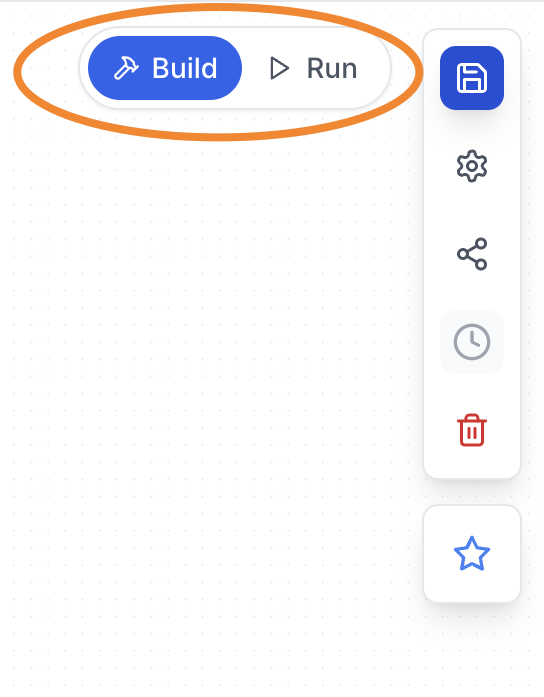
- In the canvas top bar, switch the Build / Run toggle to Run.
- The canvas tint changes and the Run panel opens on the right.
- Switch back to Build to edit the workflow again.
You can also start a run action from the node menu in Build mode (Run this node / Run up to here): the canvas switches to Run mode so you can see live status and results.
Run mode is read-only for the workflow. Copy, paste, delete, drop nodes, and opening node settings are blocked. The toast Exit Run mode to edit the workflow reminds you to switch back to Build first. The Workflow Generator is also blocked until you exit Run mode.
The Run panel
The right-hand panel has three tabs.
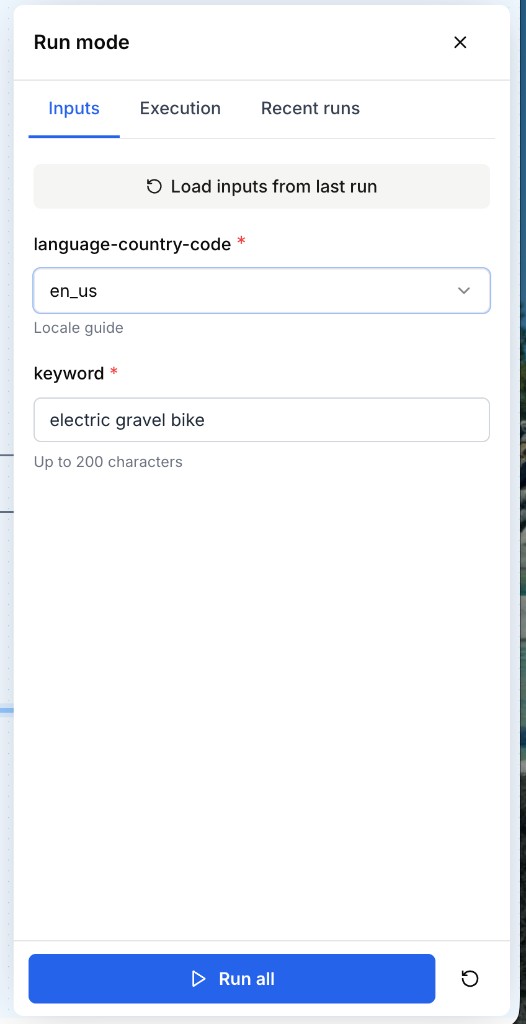
Inputs
- Form fields for every Input node in the workflow (same field types as App runner).
- Prefill helpers: Load default values and Load inputs from last run.
- Required inputs must be filled before Run all or per-node run actions are enabled.
Execution
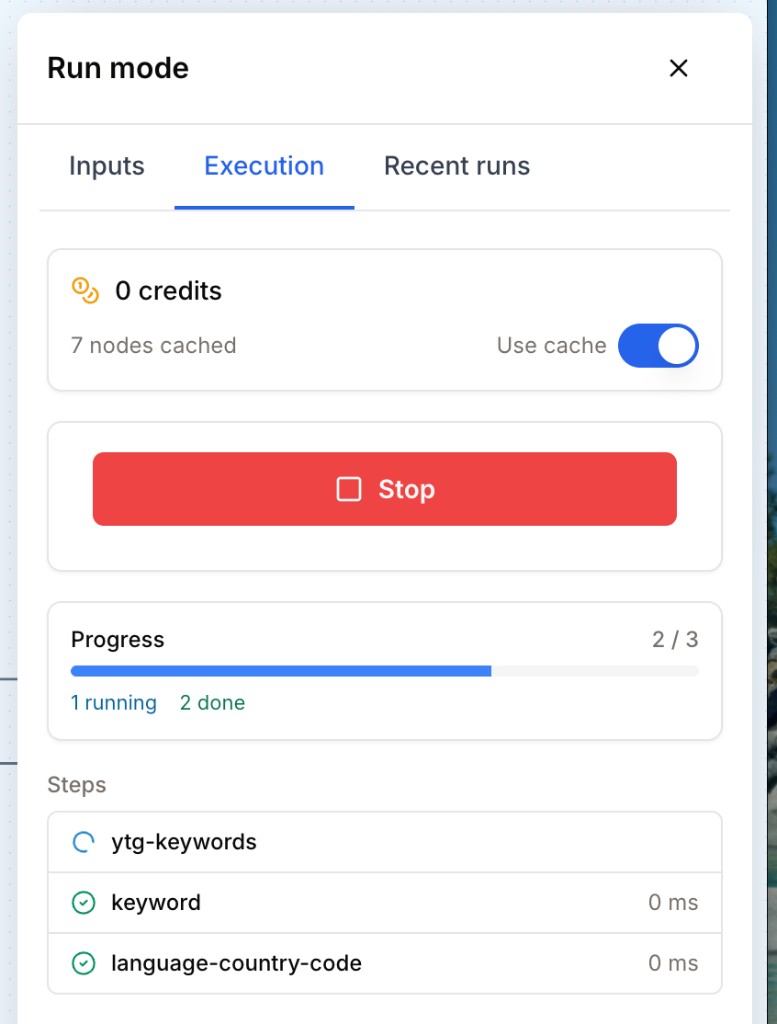
- Live Steps list and progress counts
- Cost estimate (credits) and path badge (Inline for simple workflows, Queued for heavier ones)
- Use cache toggle — when on, unchanged nodes can return From cache
- Controls: Run all, Stop, Reset
While a run is in flight, a floating banner on the canvas also shows progress and Stop.
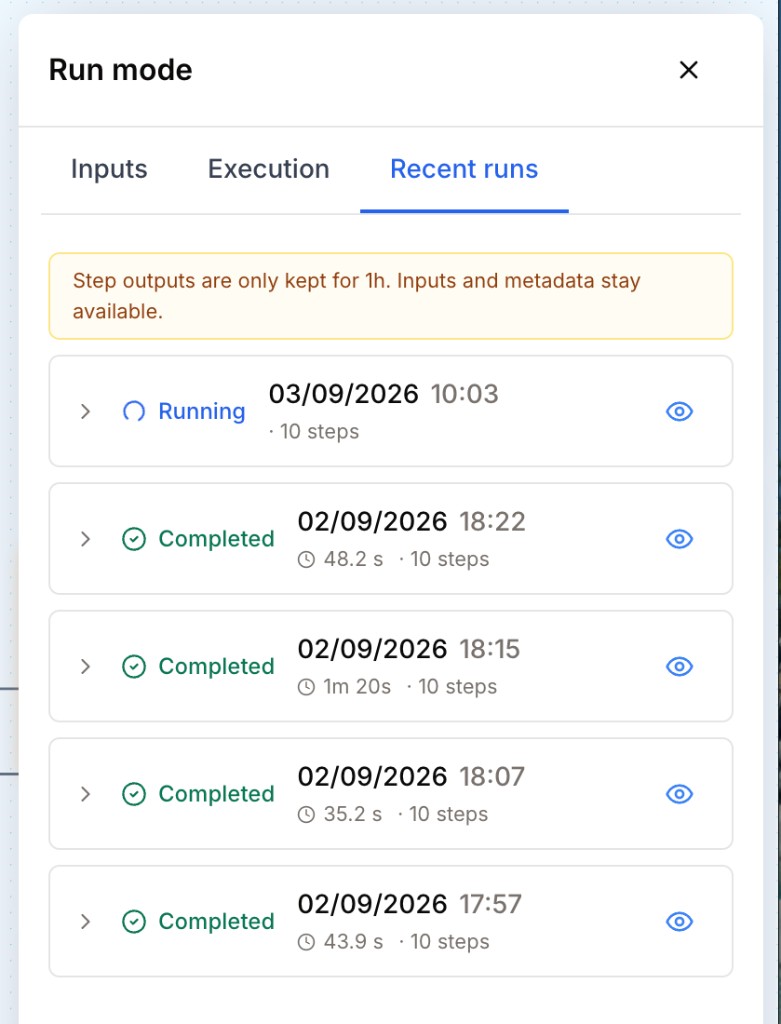
Recent runs
- History of builder (draft) runs for this workflow
- Load a past run to show each node’s status and results again on the canvas
- Step outputs may expire after a retention window; inputs and metadata stay available longer
Run actions
Run all
From the Execution tab (or Inputs), click Run all to execute the full workflow with the current panel inputs.
Keyboard (Run mode only, not while typing in a field):
| Shortcut | Action |
|---|---|
Cmd/Ctrl + Enter | Run all |
Cmd/Ctrl + Shift + Enter | Run up to the selected node |
Esc | Stop the current run |
Per-node actions
Select a node in Run mode. Two buttons appear above it:
| Button | Intended use |
|---|---|
| Run this node | Focus on the selected node (typically after upstream results are already available). |
| Run up to here | Execute the chain from the start of the workflow through this node; nodes after it stay idle. |
The same actions are available from the node menu (⋯ / right-click menu) in Build or Run mode.
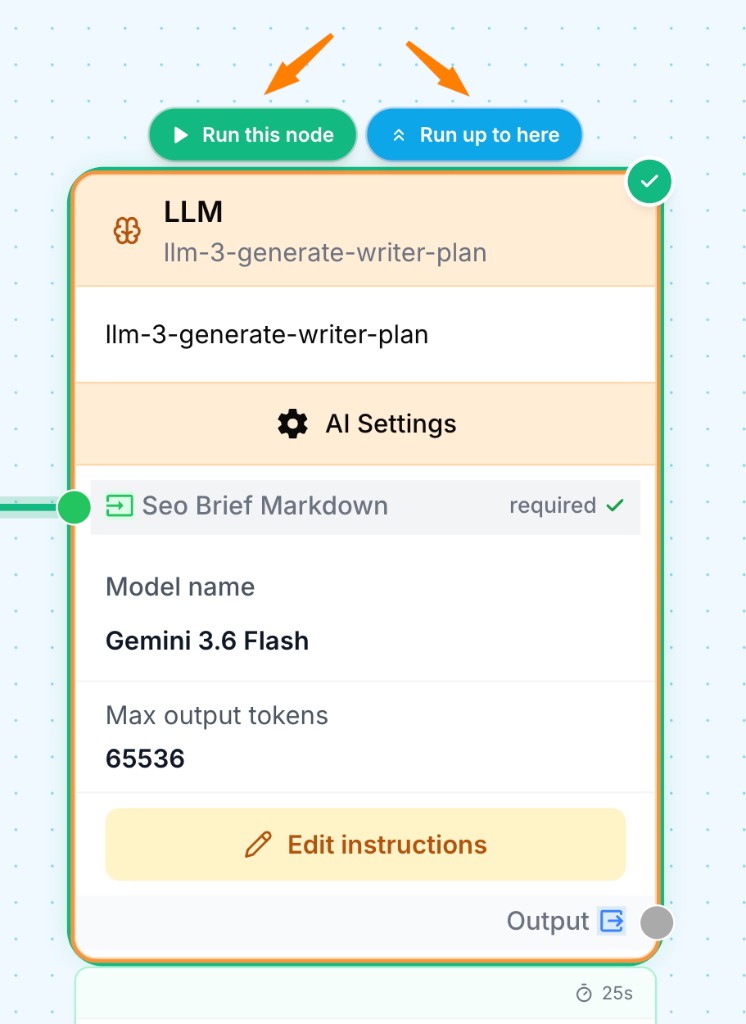
Current product behavior: both buttons send the same request — they run the selected node and its upstream nodes (not downstream nodes). If cache is warm, upstream steps may flash From cache, which can look like a single-node run. Prefer Run up to here when you mean “stop the chain here”; treat Run this node as the same chain until the product differentiates them.
After a run
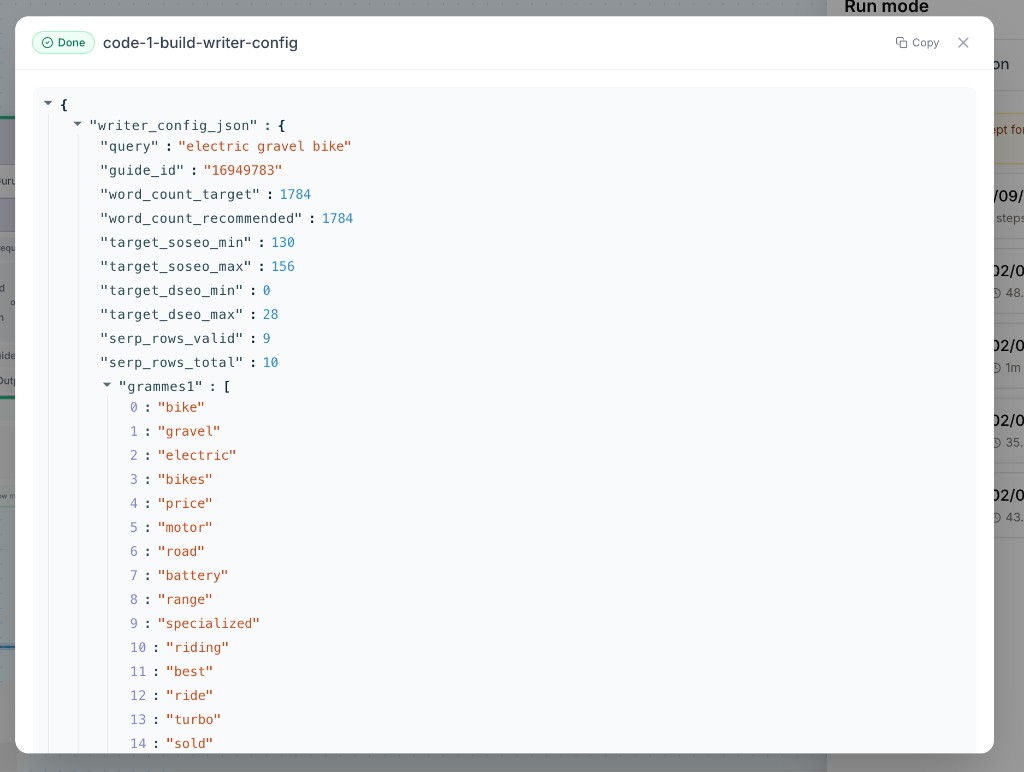
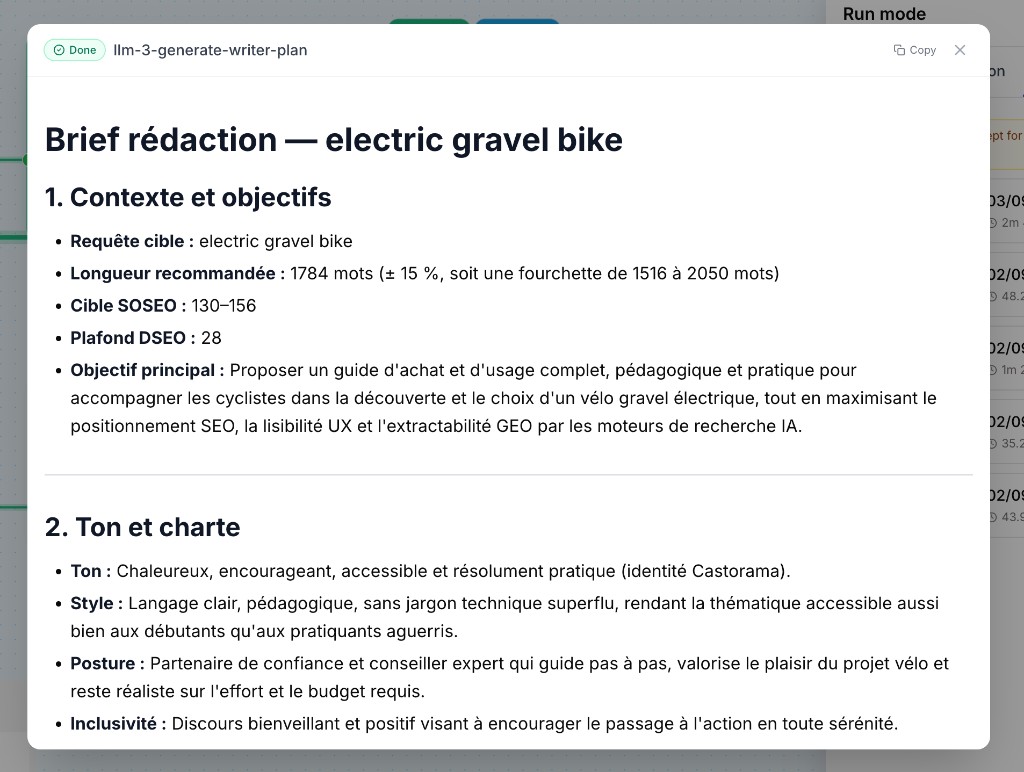
- Click a completed node to inspect output, duration, and tokens when available.
- Use Re-run (skip cache) from the node panel or menu when you need a fresh execution of that step.
- If you edited the workflow after a run, a Workflow edited since last run badge appears — run again so results match the current draft.
Understanding node status on the canvas
| Status | Meaning |
|---|---|
| Idle | Not part of the current run (or not reached yet) |
| Running | Currently executing |
| Done | Finished successfully |
| Failed | Error — open the node panel for the message |
| From cache | Reused a previous result (Use cache on) |
| Waiting | Paused (for example Human in the Loop approval) |
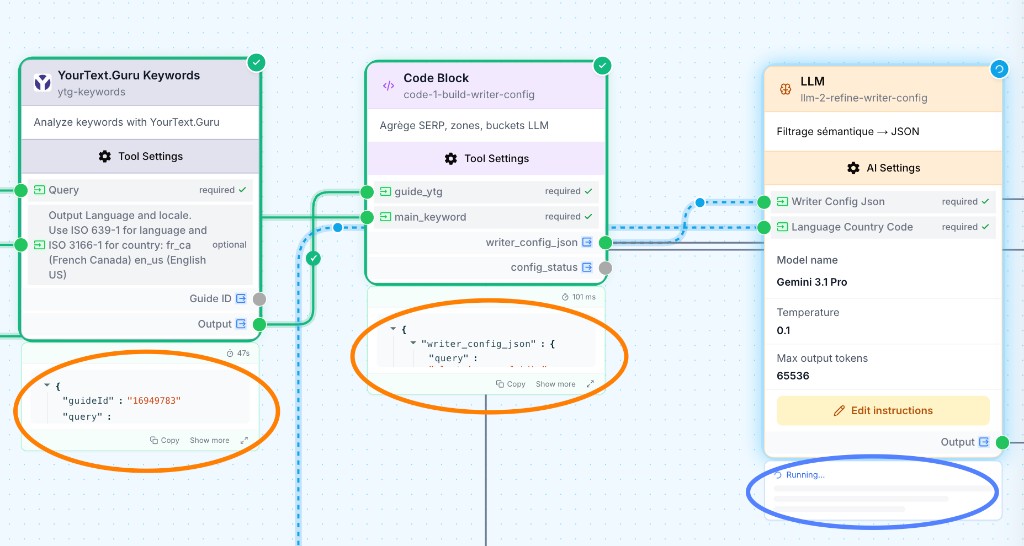
Failed nodes show a red state; fix inputs or settings in Build mode, then return to Run.
Run mode vs App runner
| Run mode (canvas) | App runner (App runner) | |
|---|---|---|
| Access | Build / Run toggle | App → Generate |
| Best for | Step-by-step debug while building | End-to-end / “user” runs |
| Visibility | Live status and results on each node | App progress UI |
| History | Recent runs in the Run panel | Workflow Run History tab |
| Schedules | No | Yes (workflow schedule settings) |
Common issues
Run buttons stay disabled
Cause: One or more required Input fields are empty.
Solution: Open the Inputs tab, fill required values (or load defaults / last run), then try again.
I cannot edit nodes or use the Generator
Cause: The canvas is in Run mode.
Solution: Switch the toggle to Build. See also Workflow Generator troubleshooting.
Results look stale after I changed the workflow
Cause: The draft changed since the last builder run.
Solution: Check for the Workflow edited since last run badge, then click Run all (turn Use cache off if you need every node fresh).
A node fails on integrations or Brand Kit
Cause: OAuth, API keys, RAG, MCP, or Brand Kit are missing or incomplete.
Solution: Fix connections under organization / workflow settings, then re-run in Run mode to locate the failing node.