Workflow Generator
Describe a workflow in natural language and generate it on the canvas — how to write a precise brief, answer clarifying questions, and refine the result
What is the Workflow Generator?
The Workflow Generator is an AI assistant on the workflow canvas. You describe what you want in natural language; it asks a few clarifying questions when needed, then builds nodes and connections on the canvas.
It complements manual building — it does not replace knowing Draft & Goal nodes, integrations, Brand Kit, or Human in the Loop. A precise brief produces a better first draft; you still review, connect integrations, and tune prompts.
When to use it
Use the Generator when you want to:
- Get a first draft of a multi-step workflow (reporting, SEO content, scoring pipelines)
- Explore an idea quickly before refining nodes by hand
- Update an existing workflow with a targeted change (Modify mode)
- Ask for a workflow audit to surface potential issues
Prefer building manually when:
- You already know the exact node graph and need fine-grained control from the start
- The workflow depends on edge-case wiring the brief cannot express clearly
Common use cases:
- Planned marketing reporting (Search Console, Analytics, Semrush → weekly email report)
- SEO / GEO article creation from a keyword
- Optimizing an existing page (scrape client page → improve content)
- Scoring pages against SEO / GEO criteria
Write an effective brief
The Generator decides whether your request is specific enough to build. Short, vague requests trigger clarifying questions. Multi-step briefs with a clear source, steps, and destination usually generate immediately.
Checklist before you send
Answer these for yourself (you do not need to paste the checklist into the chat):
| Question | Why it matters |
|---|---|
| Source — Where does data come from? (URL, Sheets, Search Console, keyword input, scrape…) | Avoids ambiguous inputs |
| Steps — What happens, in order? List 3+ named steps | Matches how the Generator designs the graph |
| Destination — Where does the result go? (email, Notion, CMS, Text Output, BigQuery…) | Avoids an incomplete terminal step |
| Runner inputs — Field names, types, and defaults | Produces correctly typed input nodes |
| Human review — Do you need approval before publish/send? | Triggers Human in the Loop when relevant |
| Brand — Should output follow a Brand Kit? | Enables brand voice and Brand Kit Variables |
| Integrations — Which tools are allowed or forbidden? | Avoids nodes you cannot connect or run |
| Wiring rules — Required intermediate steps (extract, clean, shape data) | Prevents invalid connections the compiler rejects |
| Output language — Language of the deliverable (not the prompt) | The Generator writes prompts in English; state output language inside the brief |
Configure integrations, RAG sources, and MCP servers before you rely on a generated workflow in production. Missing connections surface as notices after generation and block runs until fixed.
When clarification is skipped
Before building, the Generator checks whether your brief is already detailed enough. It skips clarifying questions when any of these is true:
- 60+ words, or
- 3+ numbered or bulleted steps (
1.,2.,-,•), or - 35+ words plus at least two sequencing markers (
then,next,finally,first…) or 4+ non-empty lines
A brief that names its inputs, steps, and destination in one pass usually generates right away. Reserve short one-liners for exploration — not for production workflows.
Copyable brief template
Minimal template:
I want [goal].

Inputs: [Input fields — e.g. keyword field, URL, Google Search Console].

Steps:
1. …
2. …
3. …

Destination: [output — e.g. weekly email, Notion, Text Output ports].

Optional:
- Human review: [yes/no — who approves]
- Brand Kit: [yes/no — which brand]
- Constraints: [e.g. no Loop, specific tools only, language]
Production-ready template (fewer surprises, closer first draft):
I want [business goal in one sentence].

Inputs Runner:
- [name] ([Short Text | Text | URL | Select | Number]) — [description]; default: [value]
- [optional Select] output-format — options: [html, markdown, json, …]; default: […]
[If Brand Kit:] Brand Kit Variables: {{brand.styleAndVoice}}, {{brand.toneOfVoice}}, …

Steps:
1. [Collect / integrate] — [tool: e.g. Google Search Console, Web Scraper, YourText.Guru]
2. [Transform] — [JSON Path Extractor / HTML Cleaner / Code Block if justified]
3. [Analyze / generate] — [LLM role + expected output shape]
4. [Score] — [LLM or YourText.Guru — only if creation workflow]
5. [Human review] — [if HITL: what is shown, approval mode, explicit score thresholds]
6. [Export] — [Text Output ports | Google Docs | email | …]

Destination:
- [Named deliverables and format]

Constraints:
- Integrations allowed only: [list tools you want]
- Forbidden: [Loop | specific tools | Agent | extra Code Blocks]
- Wiring: Web Scraper → JSON Path Extractor → HTML Cleaner before any LLM; never wire raw API/JSON into LLM
- Prompts: neutral, no client-specific data; output language: [French | English]
- Brand Kit: [on/off]
- Human in the Loop: [yes/no — when and approval policy]
Architecture constraints to state explicitly
Mention these in your Constraints block when they apply. The Generator follows them more reliably than implicit expectations.
Wiring patterns the compiler enforces:
| Pattern | Required chain |
|---|---|
| Web page content | Web Scraper → JSON Path Extractor → HTML Cleaner or HTML to Markdown → LLM |
| Heavy JSON sources (Search Console, BigQuery, HTTP Request, Sheets Reader, Serper, YouTube Search) | JSON Path Extractor or Code Block → LLM (never raw JSON straight into a prompt) |
| Loop over items | Input must be a JSON array; first node on the branch should be JSON Path Extractor |
| Image or video in a text step | Image to Text first — media output cannot feed a text prompt directly |
| Agent with fetch tools | Pass URL/topic as text to the Agent — do not also wire a Web Scraper into the same fetch |
| Structured LLM output (JSON or XML tags) | Tag Extractor or JSON Path Extractor immediately after the LLM |
Human in the Loop scores: state explicit thresholds (good if ≥ 80, approval all_of). Vague criteria (rate quality out of 10) produce no score or a notice — the Generator does not invent rubrics.
Brand Kit: when brand voice matters, say Brand Kit: yes and name variables ({{brand.toneOfVoice}}, {{brand.styleAndVoice}}, {{brand.audience}}). If several kits exist in your org, the Generator may ask which one to use.
Nodes not available to the Generator: HubSpot (all), Fasterize (all), BrowserUse, Split, AI Code, Google Slides Writer. Request them manually if you need them.
Complexity: very large graphs can hit timeout or max-steps errors. Start with a focused V1 (roughly 10 nodes or fewer), then use Modify to extend.
Do / Don’t
Name the source, 3+ steps, and destination. List Runner inputs with types. State allowed and forbidden tools. Mention Brand Kit, YourText.Guru, Human in the Loop, and wiring rules when they matter.
I want an SEO article workflow from a keyword with competitive analysis, brief, draft, scoring, human review, and export.

Inputs Runner:
- target-keyword (Short Text) — main SEO keyword
- output-language (Select) — options: French, English; default: French
- output-format (Select) — options: html, markdown, json; default: markdown

Brand Kit: yes — use {{brand.styleAndVoice}}, {{brand.toneOfVoice}}

Steps:
1. Competitive SEO/GEO analysis via YourText.Guru Keywords + Web Scraper on top URLs
2. Build SEO outline and editorial brief (structured JSON)
3. Write the article following Brand Kit and brief
4. Score with YourText.Guru Score
5. Human review — show article + scores; approval all_of; score "SEO quality" percentage good if gte 80
6. Export to Text Output ports matching output-format

Destination: four Text Output ports — seo-outline, editorial-brief, article, ytg-score

Constraints:
- Allowed: YourText.Guru, Web Scraper, Brand Kit Variables, Human in the Loop, Text Output
- Forbidden: Loop, Google Sheets, Code Block, Agent node
- Web Scraper → JSON Path Extractor → HTML Cleaner before any LLM
- Prompts in English; article output in FrenchVague or overloaded requests force the Generator to guess structure — or to ask questions you could have answered upfront:
- “Create an SEO workflow to create or optimize a product page for my site.”
- “Add every SEO tool possible so we rank better on Google.”
- “Wire Search Console data into an LLM for the report.” (raw JSON — specify JSON Path Extractor or Code Block first)
- “Review the article for quality.” (no approval mode or score threshold)
- “Use all integrations we have.” (no allowed/forbidden list)
- One-line requests under 35 words with no step list (triggers clarifying questions)
What a strong brief includes
A production-ready brief combines: objective, Runner inputs (name, type, default), numbered steps, destination, constraints (allowed / forbidden tools, wiring rules), and acceptance criteria. That level of detail skips most clarifying questions and produces a canvas closer to what you need.
Knowing Draft & Goal features (Brand Kit, Human in the Loop, Tag Extractor, JSON Path Extractor, native batch scrapers, etc.) lets you be specific about constraints instead of asking for “all SEO tools”.
Open and use the Generator
- Open a workflow on the canvas (feature available when your organization has Generator access).
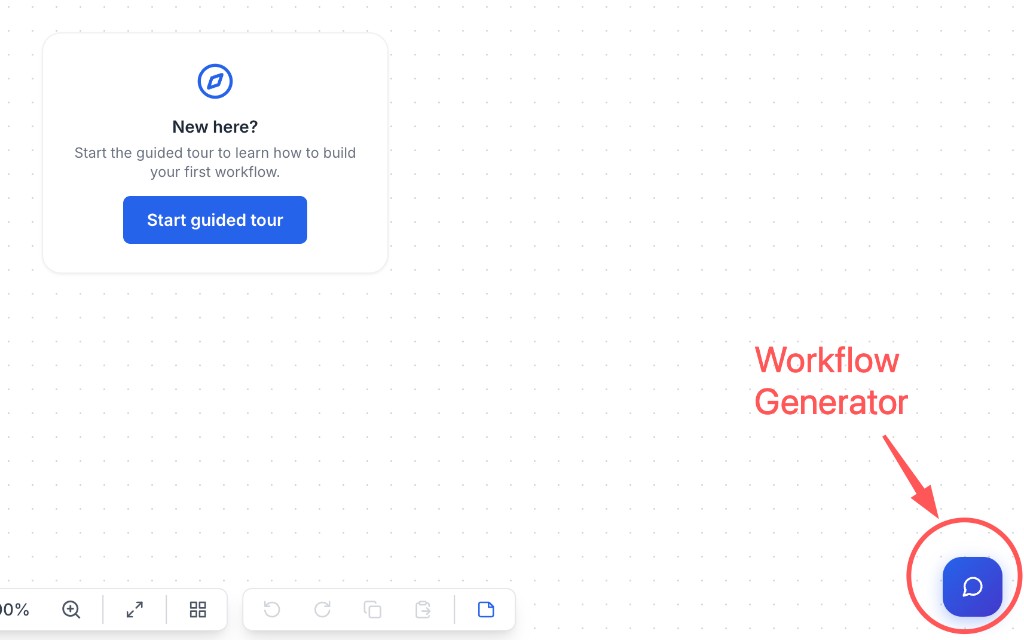
- Click the Workflow Generator bubble (chat icon) — bottom-right of the canvas.
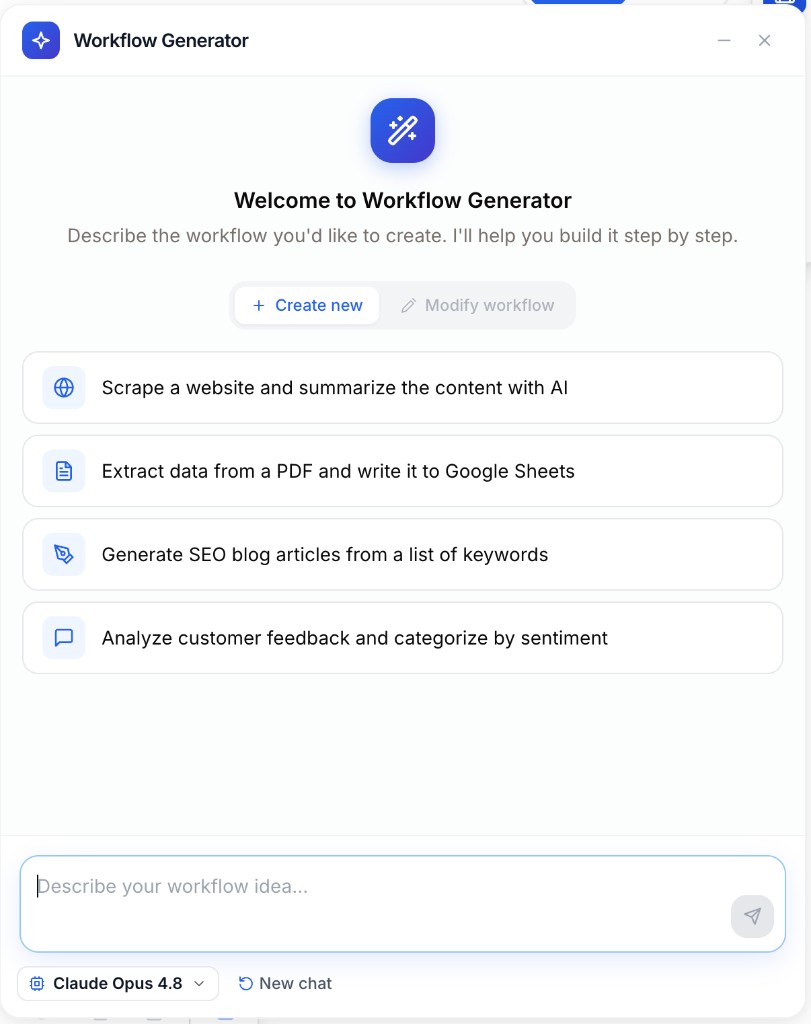
- Choose Create new (empty or new graph) or Modify workflow (change an existing workflow that already has nodes).
- Paste your brief, or click one of the suggested prompts in Create mode, then send.
While the panel is minimized, a status pill shows progress:
| State | Meaning |
|---|---|
| Generating | Building the workflow |
| Waiting | Clarifying questions or resource choices pending |
| Complete | Nodes added to the canvas |
| Error | Generation failed — reopen the panel or retry |
Clarifying questions
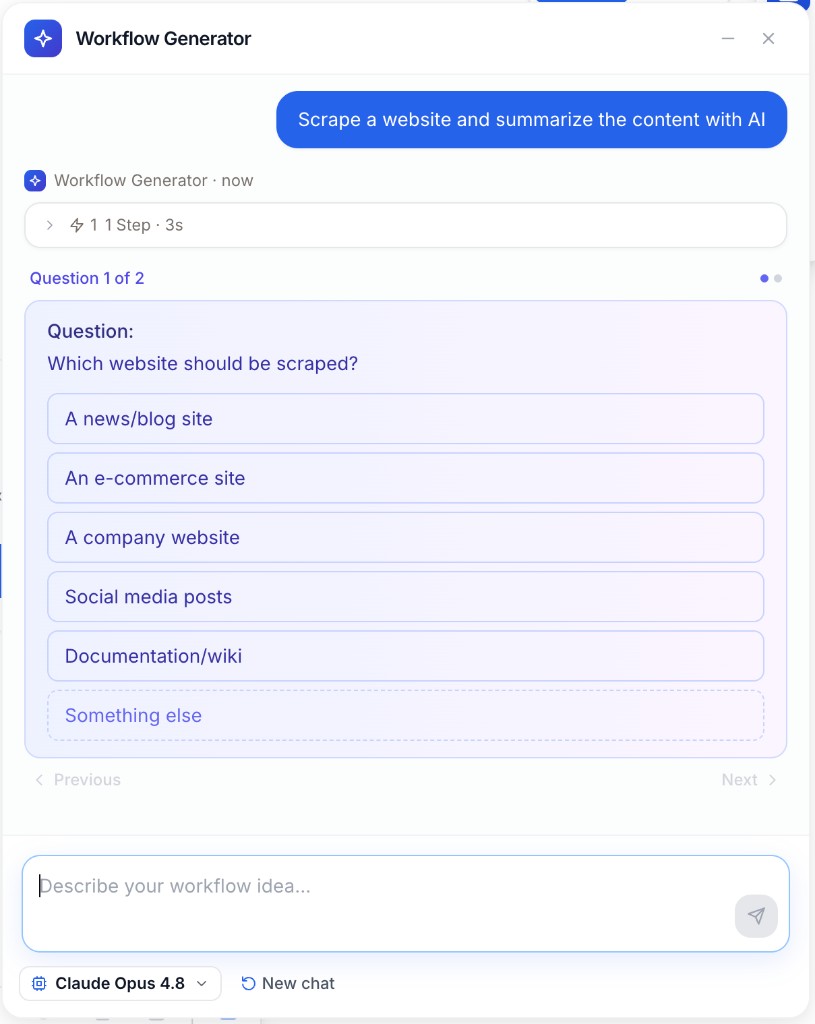
If the brief is incomplete, the Generator asks up to three structural questions — only about things that would change the graph structure:
- a missing or ambiguous data source (no reasonable default),
- a missing output destination when none can be inferred,
- a fork in intent where two very different workflows are equally plausible.
It does not ask about tone, audience, length, formatting, volume, credentials, node names, or model parameters — those use sensible defaults.
It may also ask:
- Which Brand Kit? — when several kits exist and the workflow needs brand voice (skippable)
- Which reviewers? — after generation, when a Human in the Loop node needs assignees (
All of/ quorum modes)
Questions and options appear in your language. Answer with a suggested option, type a custom answer (Something else), or skip when allowed. When several questions are pending, the panel shows Question X of Y with Previous / Next.
If you already wrote a detailed multi-step brief and still get questions, add an explicit Destination line or name the data source in step 1 — those are the most common gaps.
Modify an existing workflow
Modify mode is useful when the canvas already has nodes:
- Target one part of the graph (e.g. improve how YourText.Guru keywords become writing instructions)
- Ask for a workflow audit to list potential problems to fix
- Iterate without rebuilding the whole flow from scratch
Modify skips the pre-generation clarification phase used in Create mode — be as specific as in a good Create brief about what to change and why.
After generation
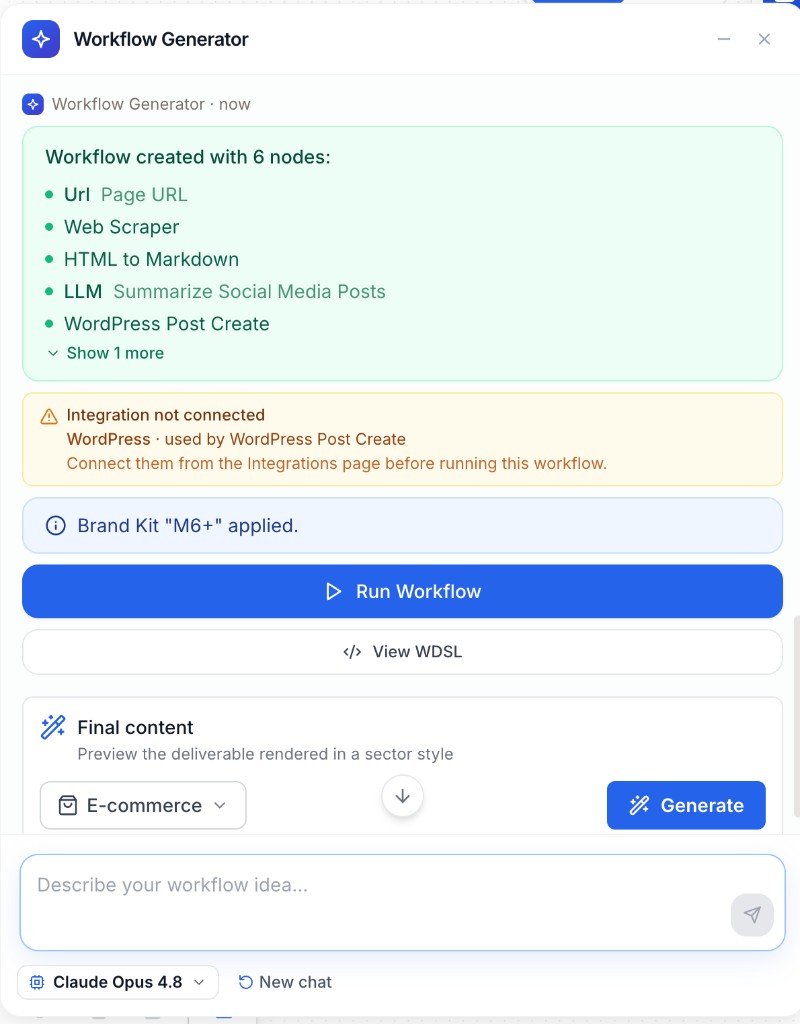
When generation succeeds, the chat shows a green summary (node list), optional notices, then actions:
- Review the nodes and connections on the canvas — node names are English action phrases (e.g. “Write SEO Article”); rename them to match your naming convention if needed.
- Read any notices (missing integrations, Brand Kit applied or unset, HITL reviewers unset, scores to configure or
scores_notewhen a threshold was missing from the brief). - Connect or fix integrations under Settings → Integrations as needed.
- Replace inline prompts with your own tuned versions if the workflow is production-bound.
- Prefer Run mode in the builder to test step-by-step and see which node fails — draft runs often stop mid-flow until inputs and connections are correct.
- Click Run Workflow on the completion card when you are ready to switch into Run mode.
Treat the first generation as a draft. Adjust prompts, Tag Extractors, error handling, and Human in the Loop settings manually after the Generator places the skeleton.
Final content (sector preview)
Below Run Workflow, the Final content block lets you preview what a deliverable could look like for a given industry — it does not rebuild the workflow or replace Run Workflow.
- Choose a sector (universe):
- E-commerce
- Media / press
- Sport
- Finance
- Travel
- Gaming
- Click Generate to open a styled, simulated HTML preview grounded on the generated workflow.
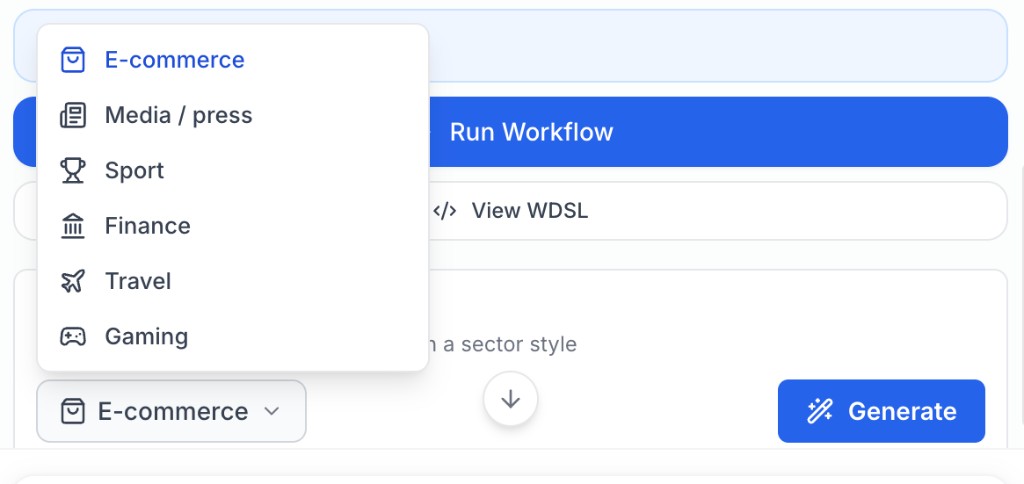
Use it to show stakeholders a sector-themed illustration of the output. Treat it as illustrative (simulated data), not as a production run of your nodes.
Common issues
The Generator asks too many questions or seems stuck waiting
Cause: The brief is missing source, destination, or a clear step list.
Solution: Resend a brief that follows the template above (source + 3 named steps + destination). Answer pending questions in the panel, or open the status pill to reopen the chat.
I cannot send a message from the Generator
The Generator lost the session and asks what to work on
Cause: The Generator session expired or was no longer available on the server (for example after a long break, a tab left open overnight, or an infrastructure restart). Studio no longer silently restarts generation — it must know whether to modify the workflow on the canvas or start from scratch.
What you see:
- Your last message is restored in the composer at the bottom of the Generator panel.
- The canvas stays readable but shows a Read-only — the generator is waiting for your answer badge. Pan, zoom, and node selection still work; edits are blocked until you choose.
- An amber notice offers three actions:
- Send by modifying the workflow — resends your draft and tells a fresh session to update the existing graph (Modify mode).
- Send starting from scratch — resends your draft as a new workflow (Create mode). This replaces the current canvas.
- Send nothing — dismisses the prompt and makes the canvas editable again. Your next message will read the workflow before acting.
Solution: Read your draft, then pick the option that matches your intent. Prefer Send by modifying the workflow when you only want to extend or fix the current graph. Use Send starting from scratch only when you accept replacing the canvas. If you collapsed the Generator panel, reopen it or check the status pill — a pending recovery choice takes priority over other statuses.
Generation fails with a rate limit, timeout, or max-steps error
Cause: Daily session limits, a slow model response, or a request that is too large/complex for one pass.
Solution: Retry later if rate-limited. Simplify the brief or split into Create then Modify. Shorten the graph scope for V1.
The workflow stops on missing integrations or empty Brand Kit fields
Cause: Required OAuth/API connections, RAG, MCP, or Brand Kit were not configured before the run.
Solution: Connect integrations and Brand Kits in the org settings, then re-run in Run mode to locate the failing node.
The brief was vague and the canvas is wrong
Cause: Requests like “build me an SEO workflow” leave structure to guesswork.
Solution: Rewrite with explicit tools (e.g. YourText.Guru Score, Web Scraper), outputs, and constraints. Use Modify to correct one section instead of regenerating everything.
The workflow has orphan nodes or invalid wiring
Cause: The brief did not specify intermediate steps (JSON Path Extractor, HTML Cleaner) or forbade tools that the Generator needed for a valid chain.
Solution: Use Modify with explicit wiring rules: “Insert JSON Path Extractor between Web Scraper and LLM” or “Add HTML Cleaner before the analysis LLM.” Regenerate a section with a focused brief if the graph is widely off.
Human in the Loop has no scores or unexpected scores_note
Cause: The brief mentioned “review for quality” without an explicit measurable threshold.
Solution: Regenerate or Modify with explicit criteria: score "Brand alignment" percentage good if gte 80, approval all_of. The Generator only authors scores when thresholds are stated.
Generation succeeded but the graph is too large or fragile
Cause: The brief asked for too many steps, tools, or branches in one pass.
Solution: Simplify the brief for V1 (fewer steps, no Loop). Generate the core path, then Modify to add scoring, HITL, or export as separate iterations.
Related pages
Build and connect nodes manually on the canvas
Reuse brand voice, personas, and guidelines in generated workflows
Pause for reviewer approval before irreversible actions
Run, debug, and monitor workflow executions
Canvas, node library, and studio layout
Connect MCP tools the Generator or agents may rely on
Invite members and assign reviewers for generated HITL steps