App runner
How to run, test, and monitor Draft & Goal workflows from App runner: manual and scheduled execution, real-time node status, outputs, and debugging failures.
Overview
Once you’ve built a workflow, it’s time to run it. This guide covers everything from manual testing to monitoring production executions.
To test on the canvas while you build (live status and results on each node, Run all / up to a node, builder Recent runs), use Build & Run mode first. This page focuses on App runner, Run history, schedules, and deeper debugging.
Running a workflow
Manual execution
The quickest way to test your workflow:
- Click the App button in the top-right corner to open App runner
- A panel opens showing your workflow’s input form
- Fill in any required inputs
- Click Generate
Execution modes
| Mode | Description | Use case |
|---|---|---|
| Run once | Execute a single time | Testing, one-off tasks |
| Run with inputs | Provide custom inputs | Processing specific data |
| Scheduled | Run automatically | Regular reports, monitoring |
Monitoring execution
Real-time progress
While your workflow runs, you can see:
- Current node: Which node is executing
- Progress: How many nodes completed
- Duration: Time elapsed
- Status: Running, completed, or failed
Node status indicators
| Color | Status |
|---|---|
| 🔵 Blue | Currently executing |
| 🟢 Green | Completed successfully |
| 🔴 Red | Failed with error |
| ⚪ Grey | Not yet executed |
Viewing outputs
Click on any completed node to see:
- Output data: The actual result
- Execution time: How long it took
- Logs: Detailed execution logs
Debugging workflows
Common issues
Node shows 'undefined' output
Cause: The previous node didn’t return expected data.
Solution:
- Check the previous node’s output
- Verify your variable path is correct
- Add a Conditional node to handle missing data
API node returns error
Cause: External service issue or invalid configuration.
Solution:
- Check your API credentials
- Verify the endpoint URL
- Test the API directly with curl or Postman
- Check rate limits
Loop never completes
Cause: Too many items or infinite loop condition.
Solution:
- Add a maximum iteration limit
- Check your loop exit condition
- Process data in batches
Workflow times out
Cause: Processing takes too long.
Solution:
- Increase timeout in workflow settings
- Optimize slow nodes
- Run heavy operations in parallel
Using run history
Access the complete history of all workflow executions:
- Open your workflow
- Click on the Run History tab
- View all past executions with their status, duration, and outputs
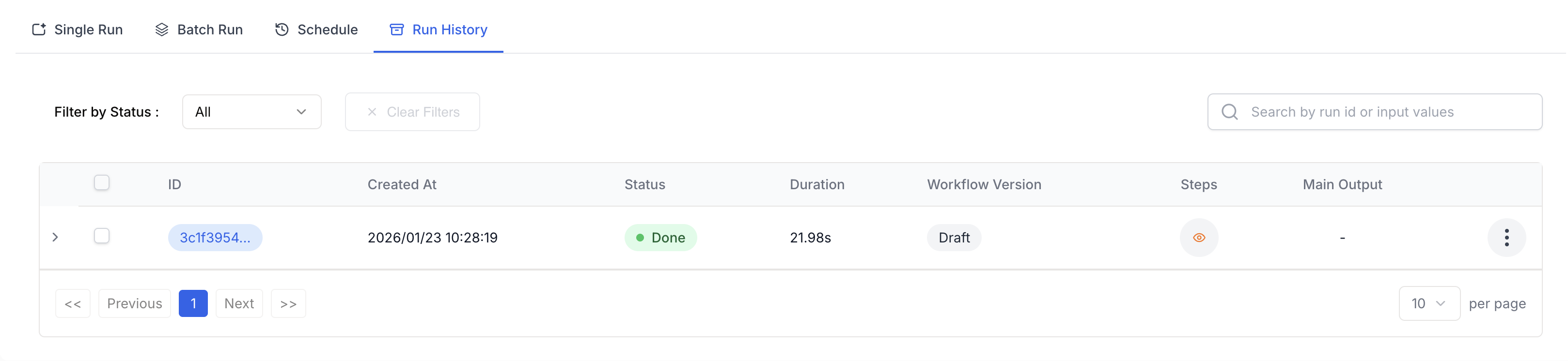
The run history table displays:
- ID: Unique identifier for each run
- Created At: Date and time of execution
- Status: Done, Failed, or Running
- Duration: Total execution time
- Workflow Version: Draft or Published version used
- Steps: Click the eye icon to view detailed step information
- Main Output: Quick access to the final result
Viewing step details
Click the Steps icon (👁) on any run to see a detailed breakdown of each node’s execution:
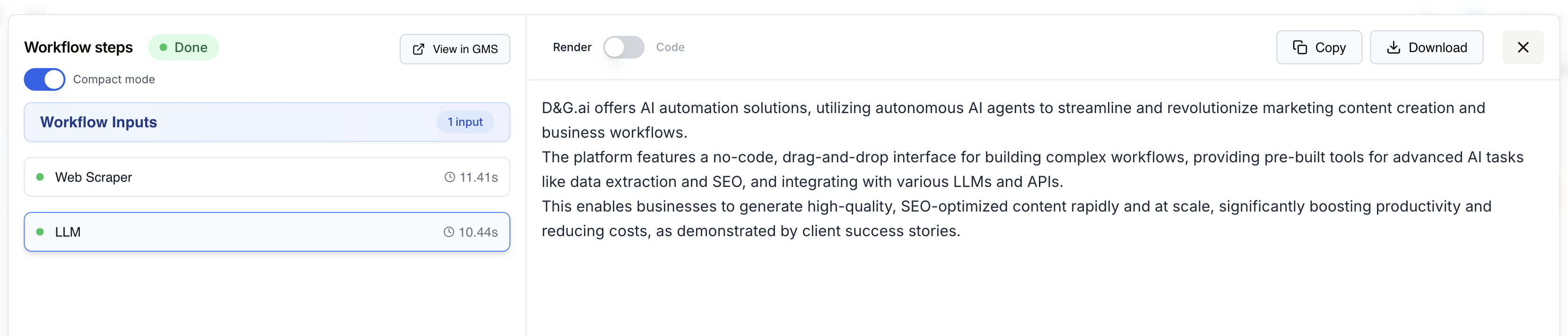
The step details panel shows:
- Workflow steps: List of all executed nodes with status indicators
- Execution time: Duration for each individual node
- Compact mode: Toggle to show/hide details
- Render/Code view: Switch between formatted output and raw data
- Copy/Download: Export the output data
Use Compact mode to quickly scan through all steps, then click on a specific step to expand its details.
Step-by-step debugging
For complex issues:
- Isolate the problem: Disable nodes after the failing one
- Check inputs: Verify the failing node receives correct data
- Test manually: Run the operation outside Draft & Goal
- Review connections: Ensure data flows correctly
- Compare runs: Use history to compare successful vs failed executions
Debugging AI Agents
AI Agent nodes require special debugging because they make autonomous decisions. Draft & Goal provides a dedicated Agent Trace feature to understand exactly what your agent did.
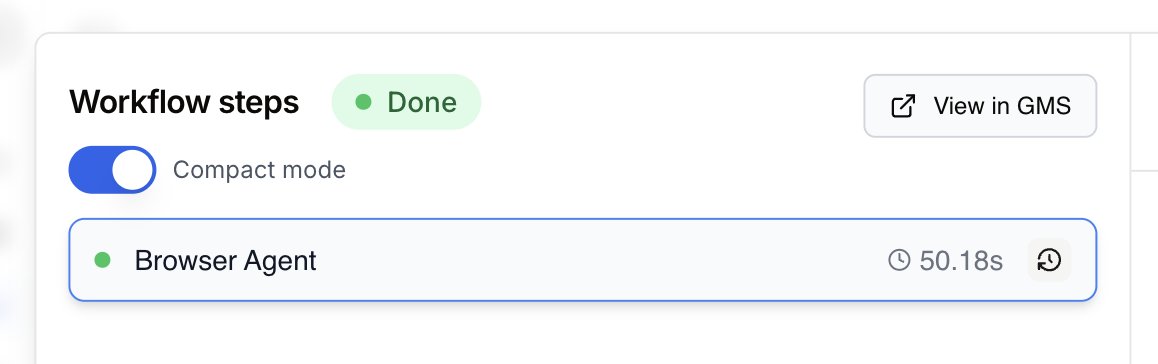
Accessing Agent Traces
When viewing workflow steps, AI Agent nodes display a clock icon (🕐) next to their execution time. Click this icon to open the trace viewer:
Understanding Agent Traces
The Agent Trace panel shows the complete conversation between the AI and its tools:
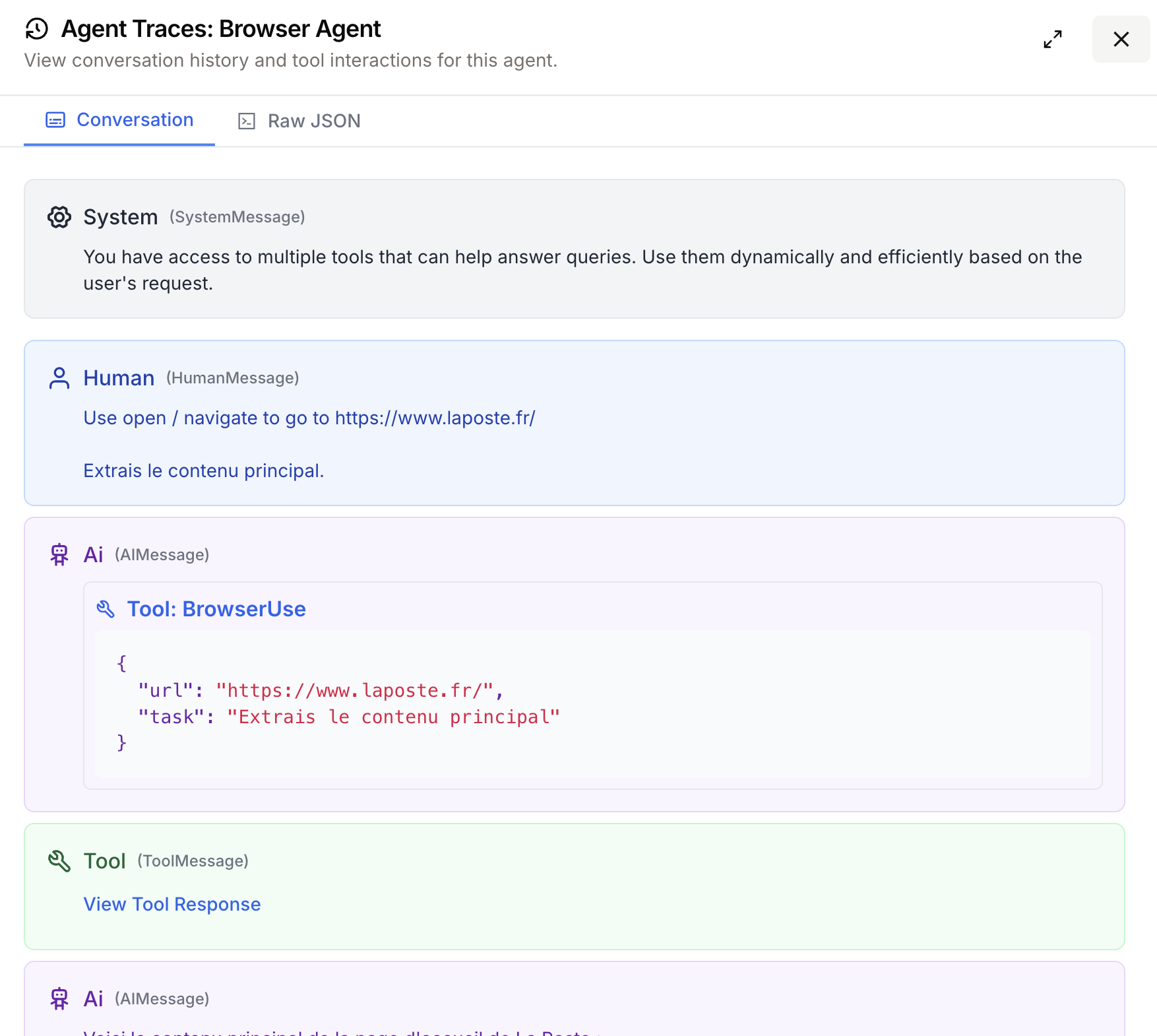
The trace includes:
| Message Type | Description |
|---|---|
| System | The initial instructions given to the agent |
| Human | The task or prompt your workflow sent |
| AI | The agent’s reasoning and tool calls |
| Tool | Results returned by tools the agent used |
Switch between Conversation view for a readable format and Raw JSON for the complete technical data.
Common agent debugging scenarios
Agent uses wrong tool
Check: Review the System message - are instructions clear?
Solution: Refine your agent prompt to be more specific about when to use each tool.
Agent loops indefinitely
Check: Look for repeated tool calls with same parameters.
Solution: Add clearer success criteria or a maximum iteration limit in your prompt.
Agent returns incomplete results
Check: Examine the Tool responses - did they return expected data?
Solution: Verify tool configurations and test tools independently.
Error handling
Built-in error handling
Configure how your node handles failures:
Workflow settings → Error Handling
| Option | Behavior |
|---|---|
| Stop on error | Halt workflow immediately |
| Continue on error | Skip failed node, continue |
| Retry | Attempt failed node again |
Using the Stop Node
Gracefully handle expected errors:
- Add a Conditional node to check for problems
- Route to a Stop Node with a clear message
- The workflow stops with your custom error
If {{response.status}} != 200
  → Stop: "API returned error: {{response.error}}"
Performance optimization
Identify bottlenecks
After running, check execution times:
- Look at the duration for each node
- Find the slowest nodes
- Optimize or parallelize them
Parallel execution
Run independent operations simultaneously:
        ┌→ Scrape Site A →┐
Input →│                   │→ Merge → Output
        └→ Scrape Site B →┘
Instead of:
Input → Scrape Site A → Scrape Site B → OutputCaching strategies
Reduce redundant API calls:
- Use Google Sheets as a cache layer
- Check if data exists before fetching
- Set appropriate cache TTLs
Batch processing
Process large datasets efficiently:
- Use the Loop node with batch settings
- Set reasonable batch sizes (10-50 items)
- Add delays between batches for rate limits
Execution history
Viewing past runs
Access the execution history:
- Go to Workflows in the main menu
- Click on your workflow
- Select the Runs tab
See:
- Run date and time
- Duration
- Status (success/failure)
- Input values used
Re-running workflows
To repeat a previous execution:
- Find the run in history
- Click Run again
- Optionally modify inputs
- Execute
Exporting results
Download execution data:
- Click on a completed run
- Select Export
- Choose format (JSON, CSV)
Scheduled execution
Setting up schedules
Run workflows automatically:
- Open workflow settings
- Go to Schedule
- Choose frequency:
| Schedule | Example |
|---|---|
| Hourly | Every hour at :00 |
| Daily | Every day at 9:00 AM |
| Weekly | Every Monday at 8:00 AM |
| Custom | Cron expression |
Cron expressions
For advanced scheduling:
┌───────────── minute (0-59)
│ ┌───────────── hour (0-23)
│ │ ┌───────────── day of month (1-31)
│ │ │ ┌───────────── month (1-12)
│ │ │ │ ┌───────────── day of week (0-6)
│ │ │ │ │
* * * * *
Examples:
0 9 * * 1- Every Monday at 9:00 AM0 */6 * * *- Every 6 hours30 8 1 * *- 1st of each month at 8:30 AM
Monitoring scheduled runs
Check scheduled execution status:
- View upcoming runs in the Schedule tab
- Get notifications on failures
- Review execution history