MCP Servers
Connect external MCP servers to extend your agents with additional tools and capabilities
Overview
MCP (Model Context Protocol) is an open standard that allows AI agents to connect to external tools and services. By configuring MCP servers in Draft & Goal, you can extend your AI agents with additional capabilities like:
- Accessing internal APIs and databases
- Integrating with third-party services (Linear, Slack, Notion, etc.)
- Running custom tools and scripts
- Connecting to your own MCP-compatible servers
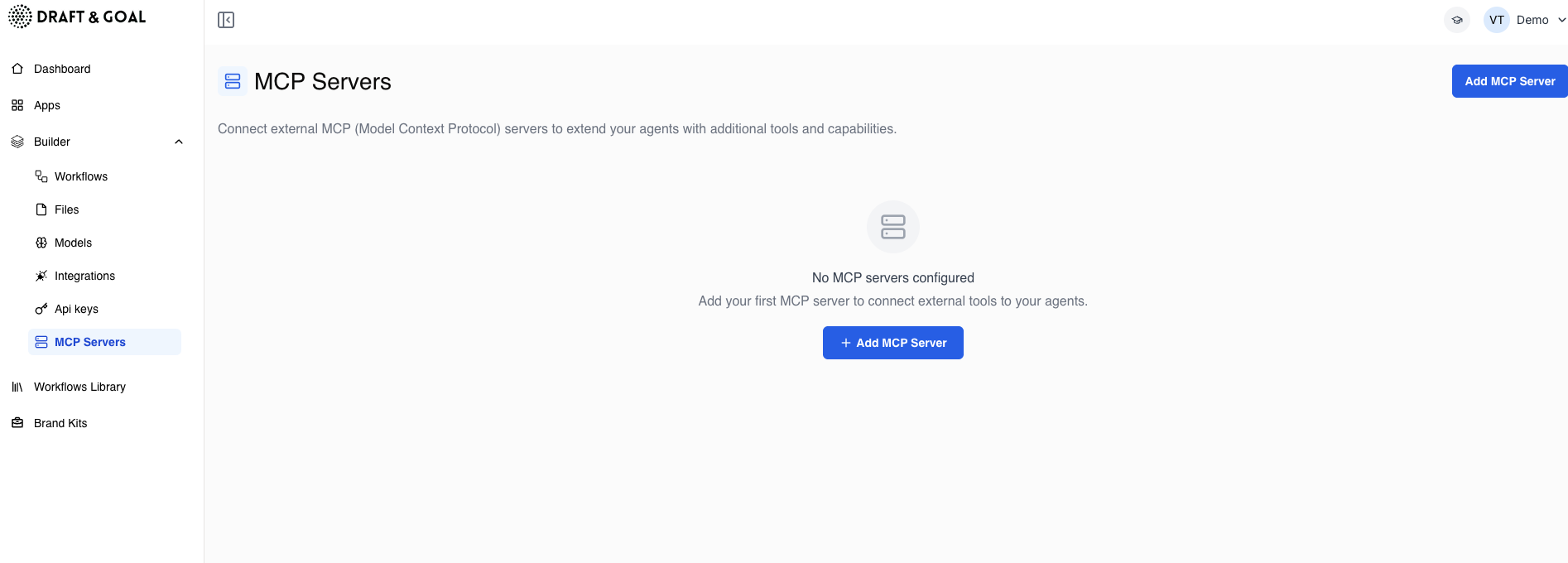
Accessing MCP Servers
Navigate to Builder → MCP Servers in the sidebar to view and manage your configured servers.
Adding an MCP Server
To connect a new MCP server:
- Click Add MCP Server in the top-right corner
- Fill in the server details
- Test the connection
- Save the configuration
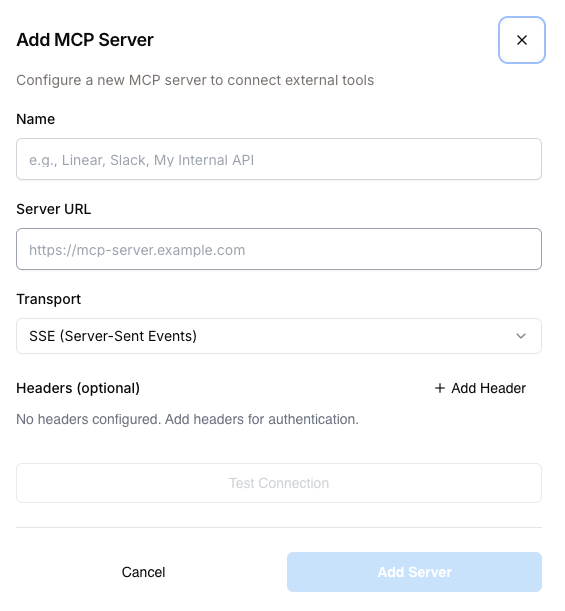
Configuration fields
| Field | Required | Description |
|---|---|---|
| Name | Yes | A friendly name to identify the server (e.g., “Linear”, “Slack”, “My Internal API”) |
| Server URL | Yes | The endpoint URL of your MCP server (e.g., https://mcp-server.example.com) |
| Transport | Yes | The communication protocol. Currently supports SSE (Server-Sent Events) |
| Headers | No | Optional HTTP headers for authentication or custom requirements |
Adding authentication headers
If your MCP server requires authentication:
- Click + Add Header
- Enter the header name (e.g.,
Authorization) - Enter the header value (e.g.,
Bearer your-api-key) - Add additional headers as needed
Common authentication headers include:
Authorization: Bearer <token>X-API-Key: <api-key>X-Custom-Auth: <value>
Testing the connection
Before saving, click Test Connection to verify:
- The server URL is reachable
- Authentication headers are correct
- The server responds with valid MCP protocol
If the test fails, check your server URL and authentication credentials. Ensure your MCP server is running and accessible from the internet.
Using MCP tools in workflows
Once an MCP server is configured, its tools become available in your AI Agent nodes:
- Add an AI Agent node to your workflow
- Open the node settings
- In the Tools section, you’ll see tools from your configured MCP servers
- Select the tools you want the agent to use
The AI agent can then autonomously decide when to use these tools based on your instructions.
Transport protocols
SSE (Server-Sent Events)
The default transport protocol. SSE provides:
- Real-time streaming responses
- Efficient one-way communication from server to client
- Wide compatibility with existing infrastructure
Additional transport protocols may be added in future updates. SSE is recommended for most use cases.
Best practices
Security
- Use HTTPS: Always use secure URLs (
https://) for production servers - Rotate credentials: Regularly update authentication tokens
- Limit permissions: Configure MCP servers with minimal required permissions
Naming conventions
Use clear, descriptive names for your servers:
| Good | Not recommended |
|---|---|
Linear - Issue Tracking | Server 1 |
Internal CRM API | API |
Slack Notifications | slack |
Organization
- Group related tools in the same MCP server when possible
- Document what each server provides for your team
- Remove unused servers to keep the list manageable
Troubleshooting
Connection failed
| Issue | Solution |
|---|---|
| Server unreachable | Verify the URL is correct and the server is running |
| Authentication error | Check header names and values |
| Timeout | Ensure your server responds within 30 seconds |
| SSL error | Verify the server has a valid SSL certificate |
Tools not appearing
If tools from your MCP server don’t appear in AI Agent nodes:
- Verify the server connection is successful
- Check that the server implements the MCP tools listing endpoint
- Refresh the workflow editor
MCP servers must implement the standard MCP protocol. Custom or non-compliant servers may not work correctly.