Using Variables
Pass data between nodes using variables
What are variables?
Variables are placeholders that let you pass data dynamically between nodes. Instead of hardcoding values, you reference outputs from other nodes.
Static:  url = "https://example.com"
Dynamic: url = {{url}}
With variables, your workflows become flexible and reusable.
Variable syntax
Basic syntax
Variables use double curly braces:
{{var}}| Part | Description |
|---|---|
{{ }} | Variable delimiters |
NodeName | The name of the variable |
Accessing node outputs
Simple outputs
For nodes with a single output:
{{var}}Structured outputs
For nodes that return objects, use dot notation:
// Web Scraper output
{
  "content": "Page text...",
  "title": "Page Title",
  "metadata": {
    "url": "https://example.com",
    "wordCount": 1500
  }
}
Array outputs
For arrays, use index notation:
// Google Sheets output
{
  "rows": [
    {"name": "Alice", "email": "alice@example.com"},
    {"name": "Bob", "email": "bob@example.com"}
  ]
}
Access array items:
{{$.rows[0].name}}  → "Alice"
{{$.rows[1].email}} → "bob@example.com"Array indices start at 0. The first item is [0], not [1].
Using variables in nodes
In text fields
Embed variables directly in text:
Summarize this article about {{topic}}:

{{WebScraper_0}}

Focus on: {{keywords}}
In URL fields
Build dynamic URLs:
https://api.example.com/search?q={{query}}&page={{page_number}}In JSON fields
Use variables in JSON configuration:
{
  "title": "{{article_title}}",
  "content": "{{LLM_0}}",
  "author": "{{author_name}}"
}
Special variables with BrandKit
BrandKit provides global variables that maintain brand consistency across all your workflows. These variables are pre-filled with your brand information and can be used anywhere in your nodes.
Activate BrandKit
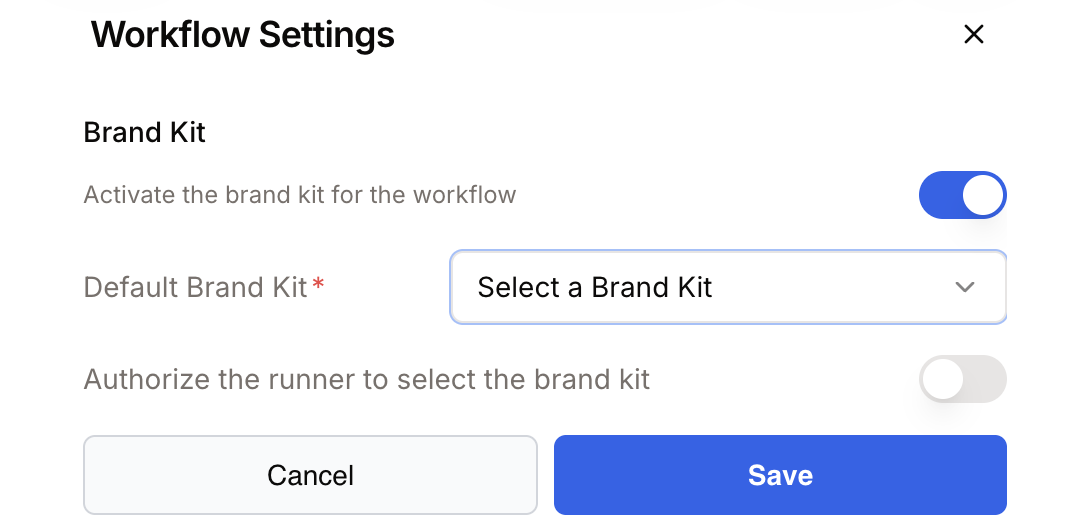
To use BrandKit variables, first enable it in your workflow settings:
- Open Workflow Settings (gear icon)
- Scroll to the Brand Kit section
- Toggle Activate the brand kit for the workflow
- Select your Default Brand Kit
Available variables
Once BrandKit is activated, you can access these variables in any text field by typing {{ :
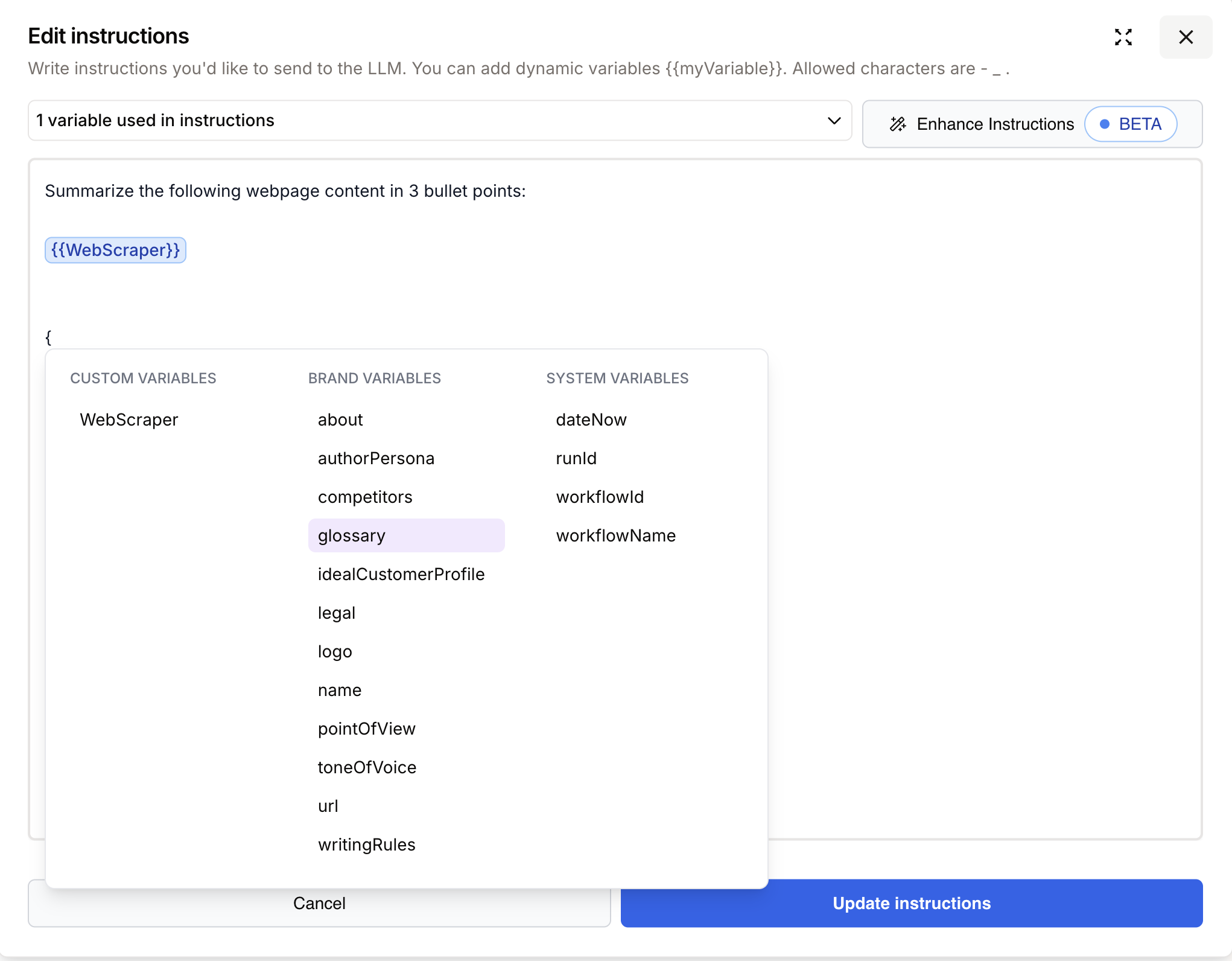
Brand Variables
| Variable | Description |
|---|---|
{{about}} | Company description and mission |
{{authorPersona}} | Default author profile for content |
{{competitors}} | List of competitor brands |
{{glossary}} | Brand-specific terminology |
{{idealCustomerProfile}} | Target audience description |
{{legal}} | Legal disclaimers and terms |
{{logo}} | Brand logo URL |
{{name}} | Brand/company name |
{{pointOfView}} | Brand perspective (first person, etc.) |
{{toneOfVoice}} | Writing style guidelines |
{{url}} | Main website URL |
{{writingRules}} | Content writing guidelines |
System Variables
| Variable | Description |
|---|---|
{{dateNow}} | Current date and time |
{{runId}} | Unique identifier for this execution |
{{workflowId}} | Unique identifier for the workflow |
{{workflowName}} | Name of the current workflow |
Use BrandKit variables in LLM prompts to ensure all AI-generated content follows your brand guidelines automatically.
Document complex variables
Add comments in your workflow description explaining complex variable usage.
Debugging variables
Preview values
- Run your workflow
- Click on a node
- See the actual values in the output panel
Common issues
| Problem | Solution |
|---|---|
undefined | The path doesn’t exist. Check spelling. |
| Empty value | Previous node didn’t return data. |
| Type error | Expected string but got object. Use .toString() |
Variable inspector
Use the variable inspector to:
- Browse available variables
- See current values
- Copy variable paths