AI Models
Configure and manage AI model providers in your workspace
Overview
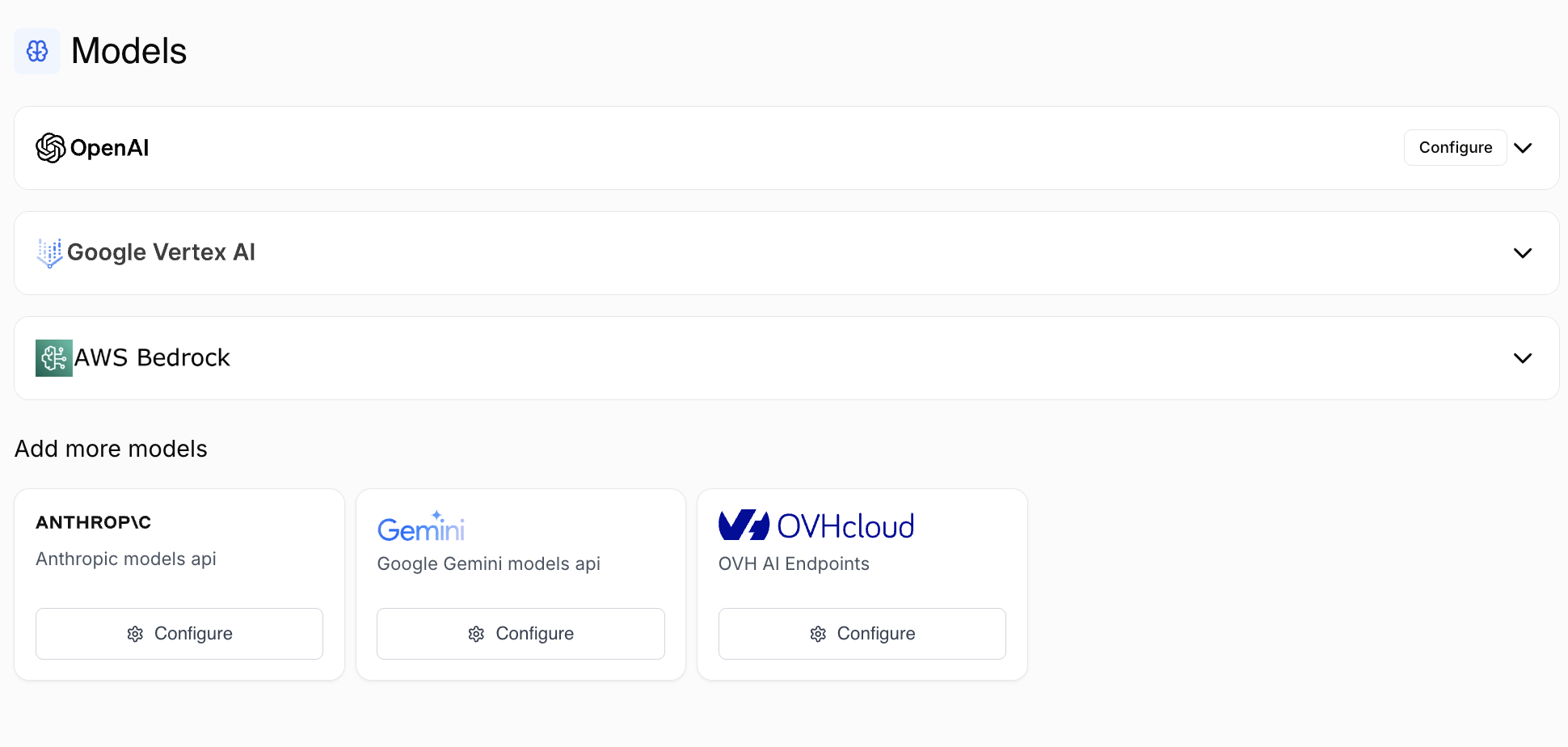
Draft & Goal supports multiple AI model providers, giving you flexibility to choose the best models for your workflows. You can enable built-in providers or add custom providers by configuring API keys.
Available providers:
- Built-in providers: Google Vertex AI, AWS Bedrock (pre-configured)
- Custom providers: OpenAI, Anthropic, Google Gemini, OVHcloud (requires API key)
Accessing AI Models
Navigate to Settings → Models in the studio to view and manage your AI model providers.
The Models page displays:
- All available model providers
- Individual models within each provider
- Activation status for each model
- Configuration options for custom providers
Built-in providers
Google Vertex AI
Google Vertex AI models are pre-configured and available by default:
claude-opus-4-1@20250805claude-sonnet-4-5@20250929claude-sonnet-4@20250514gemini-2.5-flashgemini-2.5-flash-imagegemini-2.5-progemini-3-pro-previewimagen-4.0-generate-001veo-3.0-generate-001
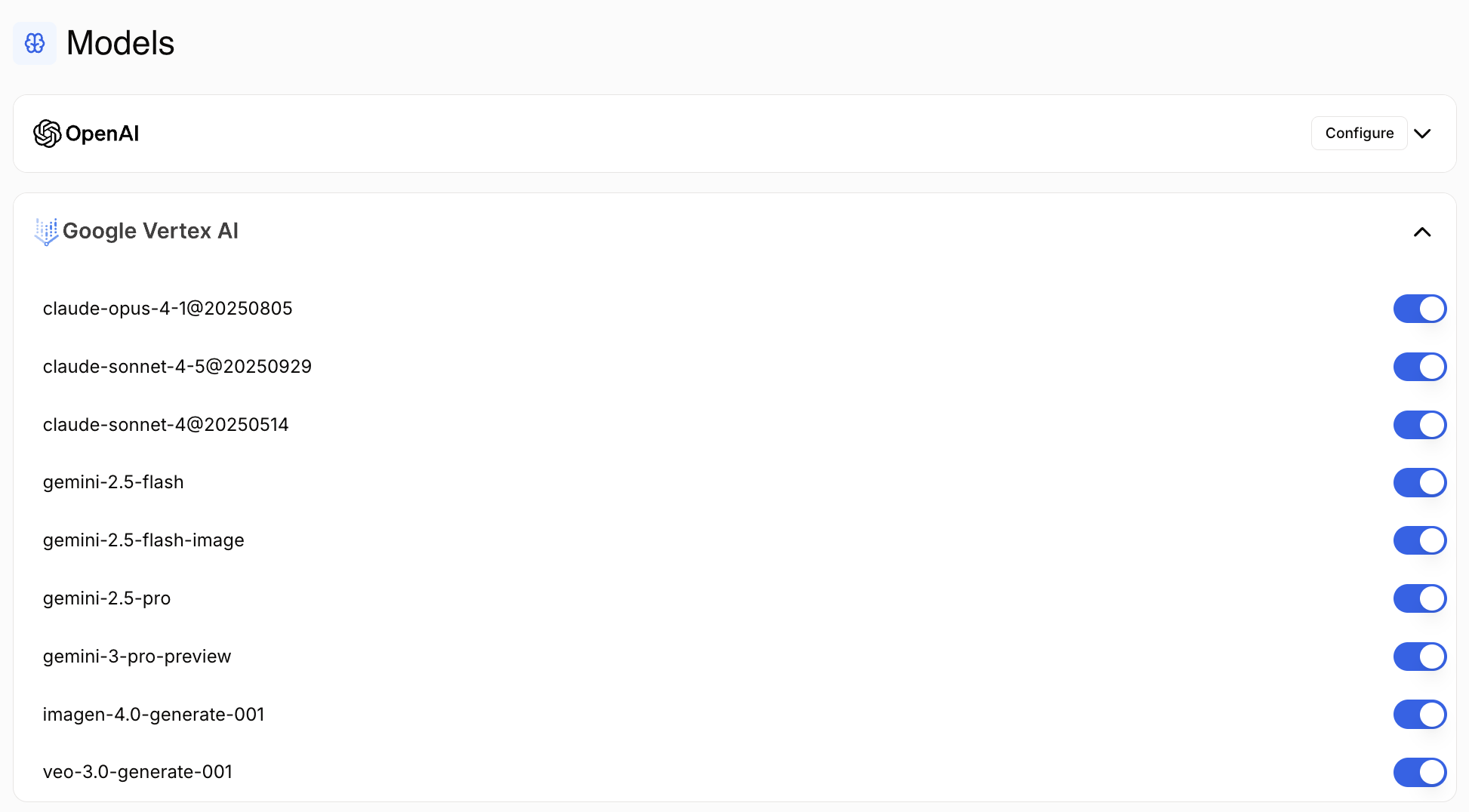
Vertex AI models are available immediately and don’t require additional configuration. Simply toggle the models you want to use.
AWS Bedrock
AWS Bedrock models are also pre-configured and ready to use. Enable the models your team needs from the list.
Enabling and disabling models
Each model can be individually enabled or disabled:
- Navigate to the provider section
- Click the toggle switch next to each model
- Enabled models appear in blue
- Changes are saved automatically
Disable unused models to keep your model selection list clean in workflow nodes.
Adding custom providers
Add additional model providers by configuring their API keys.
OpenAI
To use OpenAI models (GPT-4, GPT-3.5, etc.):
- Click Configure on the OpenAI card
- Enter your OpenAI API key
- Click Save
Getting an OpenAI API key:
- Go to platform.openai.com
- Navigate to API Keys
- Create a new key
- Copy and paste into Draft & Goal
Anthropic
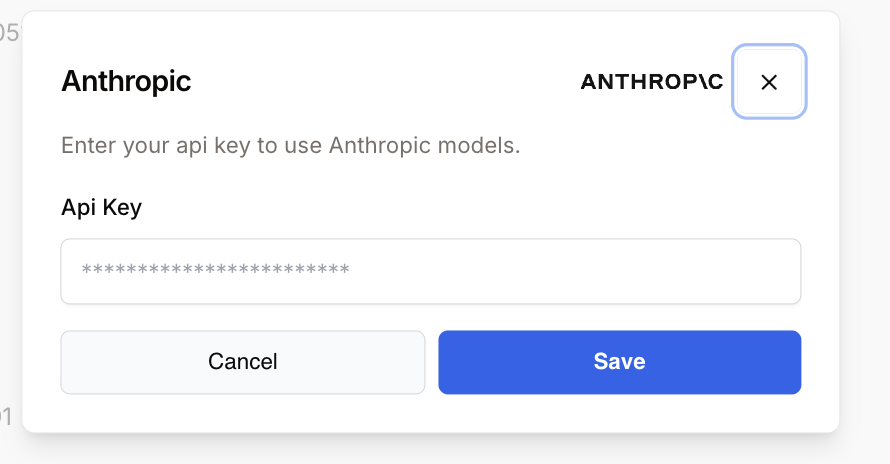
To use Anthropic models (Claude):
- Click Configure on the Anthropic card
- Enter your Anthropic API key
- Click Save
Getting an Anthropic API key:
- Go to console.anthropic.com
- Navigate to API Keys
- Create a new key
- Copy and paste into Draft & Goal
Google Gemini
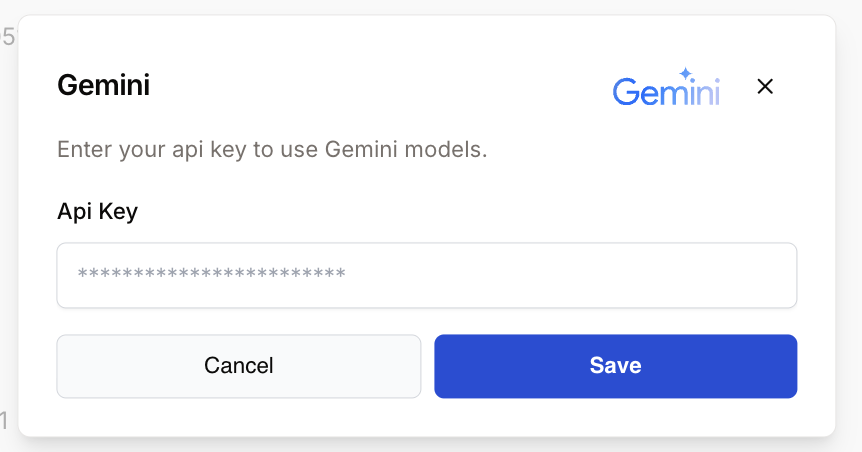
To use Google Gemini models via Google AI Studio:
- Click Configure on the Gemini card
- Enter your Google AI API key
- Click Save
Getting a Google AI API key:
- Go to makersuite.google.com
- Navigate to Get API Key
- Create a new key
- Copy and paste into Draft & Goal
This is different from Google Vertex AI. Vertex AI uses your Google Cloud credentials, while Gemini uses Google AI Studio keys.
OVHcloud
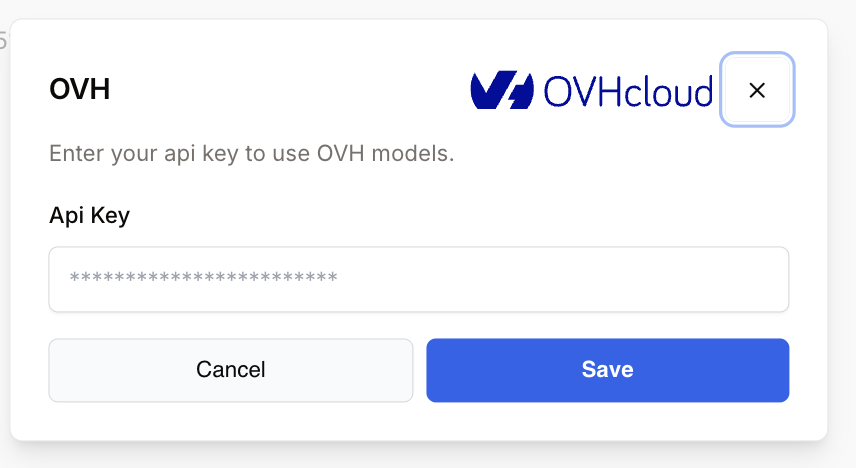
To use OVHcloud AI models:
- Click Configure on the OVH card
- Enter your OVHcloud API key
- Click Save
Getting an OVHcloud API key:
- Go to your OVHcloud console
- Navigate to AI Services
- Generate an API key
- Copy and paste into Draft & Goal
Using models in workflows
Once models are enabled, they become available in AI nodes:
- Add an LLM or AI Agent node to your workflow
- Open the node settings
- In the Model dropdown, select from available models
- Models are organized by provider
The model selector shows:
- Provider name (e.g.,
OPENAI,GOOGLE_VERTEXAI,ANTHROPIC) - Model name (e.g.,
gpt-4o,claude-sonnet-4-5) - Only enabled models appear in the list
Best practices
Security
- Protect API keys: Never share API keys in workflow descriptions or public documentation
- Use workspace keys: Configure keys at the workspace level so individual users don’t need their own
- Rotate regularly: Update API keys periodically for security
- Monitor usage: Track API usage to detect unauthorized access
Cost management
- Start small: Begin with faster, cheaper models for testing
- Enable selectively: Only enable models your team actually uses
- Monitor spend: Most providers offer usage dashboards
- Set limits: Configure spending limits with your provider
Model selection
- Match task to model: Use simpler models for simple tasks
- Test different models: Compare results across providers
- Consider latency: Faster models improve workflow execution time
- Check availability: Ensure models are available in your region
Organization
| Best practice | Why it matters |
|---|---|
| Document which models to use | Team consistency |
| Disable unused models | Cleaner selection lists |
| Monitor deprecations | Stay updated on model changes |
| Test before deploying | Ensure compatibility |
Troubleshooting
API key rejected
| Issue | Solution |
|---|---|
| Invalid API key | Verify the key is copied correctly without extra spaces |
| Key expired | Generate a new key from the provider |
| Insufficient permissions | Ensure the key has the correct scopes/permissions |
| Billing issue | Check your provider account has an active payment method |
Model not appearing
If a model doesn’t appear in workflow nodes:
- Verify the model is enabled (toggle is blue)
- Check that the provider is configured correctly
- Refresh the workflow editor
- Clear browser cache if needed
Rate limits
If you encounter rate limit errors:
- Check your provider’s rate limits
- Upgrade your provider plan if needed
- Implement retry logic in workflows
- Distribute requests across multiple models
Connection errors
If you can’t connect to a provider:
- Verify your API key is correct
- Check your internet connection
- Ensure the provider service is operational
- Contact the provider’s support if issues persist
API keys provide full access to your provider account. If a key is compromised, delete it immediately and generate a new one.
Provider comparison
Different providers have different strengths:
| Provider | Best for | Strengths | Considerations |
|---|---|---|---|
| OpenAI | General purpose, GPT models | Broad capabilities, well-documented | Higher cost for advanced models |
| Anthropic | Long content, nuanced tasks | Large context windows, safety features | Limited model selection |
| Google Vertex AI | Enterprise, Google Cloud | Integrated with GCP, diverse models | Requires GCP setup |
| Google Gemini | Quick prototyping | Easy setup, multimodal | Rate limits on free tier |
| AWS Bedrock | Enterprise, AWS users | Multiple models, AWS integration | Requires AWS setup |
| OVHcloud | European users, GDPR | European hosting, data residency | Smaller model selection |